
Quick Answer
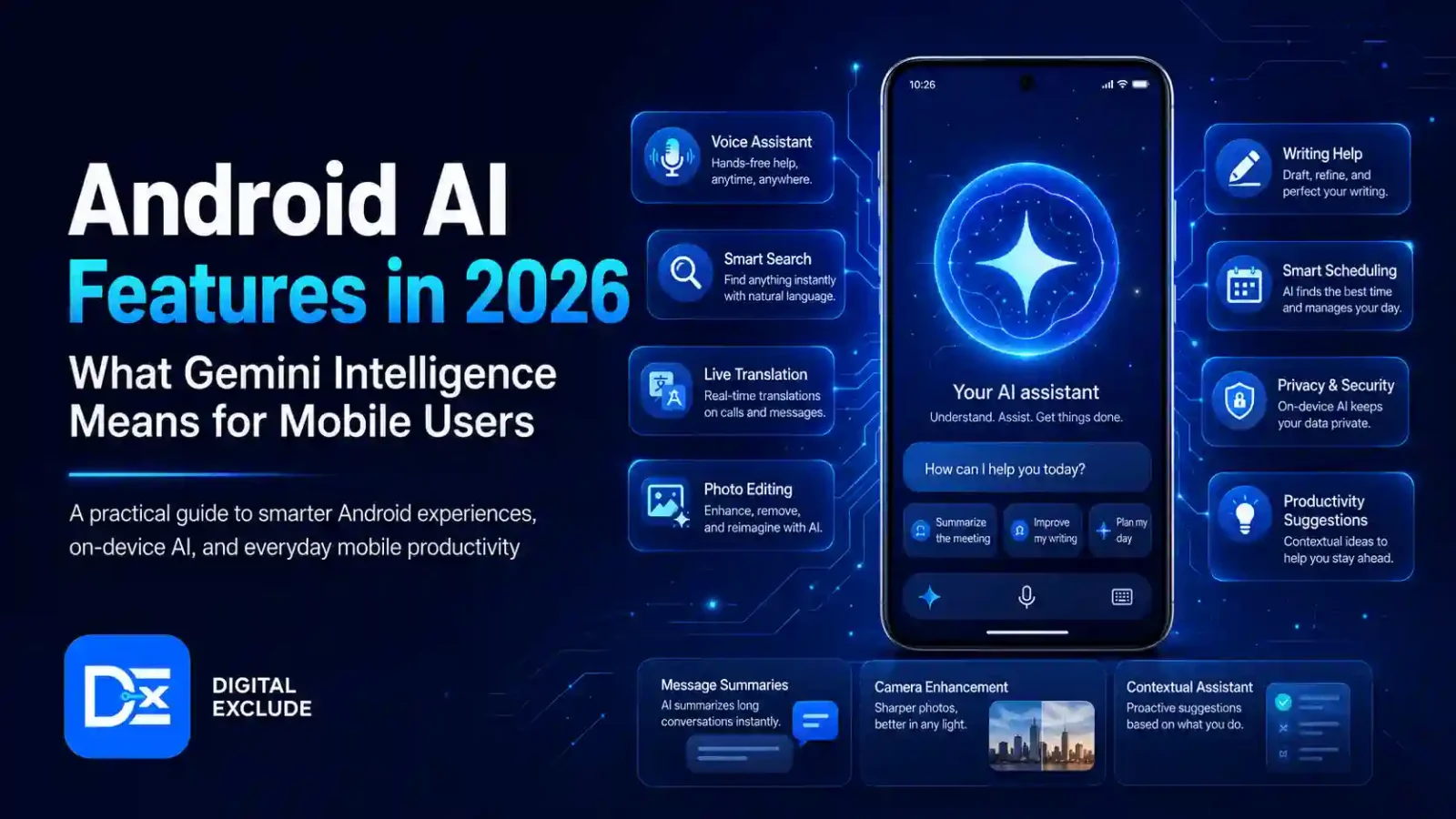
Android AI features in 2026 are designed to make phones more helpful by using Gemini Intelligence to understand context, summarise content, assist with messages, automate selected tasks, connect with supported apps, and improve mobile security. For users, this means Android is moving beyond simple voice commands and becoming more like a practical assistant for daily work.
Gemini Intelligence is expected to help with tasks such as summarising web pages, filling forms, polishing spoken messages, creating widgets, and handling selected multi-step tasks. However, availability may depend on phone model, country, language, account type, subscription plan, and rollout timing. Google says Gemini Intelligence features are coming to select Samsung and Google phones first, with broader availability across devices later.
Introduction
Android phones are no longer used only for calls, browsing, payments, and apps. In 2026, AI is becoming part of the mobile experience itself. Students want faster study help. Working professionals want better summaries, messages, and reminders. Small business owners want practical productivity. Tech beginners want simple assistance. Android users want useful AI features without confusion. Cybersecurity learners want to understand how mobile AI affects privacy and safety.
The real problem is simple: many users are hearing about Android AI features, Gemini, and Gemini Intelligence, but they do not know what is actually useful, what is still limited, and where they need to be careful.
This guide explains what Gemini Intelligence means for Android users in 2026, how these AI features may help in real life, what mistakes to avoid, and how to use them safely.
What Do Android AI Features Mean?
Android AI features are artificial intelligence tools built into or connected with Android phones, apps, and Google services. These features can help users write, summarise, search, organise, translate, understand content, automate tasks, and improve security.
In simple words, Android AI features help your phone understand more context and assist you with tasks that usually require manual effort.
Examples include:
- Summarising long web pages
- Asking questions about the content on the screen
- Drafting or polishing messages
- Helping with reminders and calendar tasks
- Filling complex forms
- Connecting with apps like Gmail, Calendar, Docs, Drive, Keep, and Tasks
- Assisting inside Chrome on Android
- Helping with research or planning
- Supporting AI-powered security protection
Google describes Gemini Intelligence as part of Android’s move from an operating system toward an “intelligence system,” where the device can understand context, anticipate needs, and complete tasks on the user’s behalf. Google also says its privacy approach is based on user control, data protection, and operational transparency.
Why Android AI Features Matter in 2026
Android AI features matter in 2026 because phones are where many people now study, work, shop, communicate, manage money, run businesses, and handle personal data. If AI becomes part of the phone experience, it can save time and make daily tasks easier.
But it also creates new questions:
- What data does the AI use?
- Which apps can it access?
- Can it send messages or take actions?
- Can it make mistakes?
- Is it available on all Android phones?
- Does it require a paid plan?
- Can it handle sensitive tasks safely?
Google has announced new Gemini-based mobile experiences, including Gemini in Chrome for Android, auto browse, page summaries, question answering, and confirmation before sensitive tasks. Android is also adding AI-powered protections and security safeguards in 2026 to help users deal with evolving threats.
For beginners, the benefit is convenience. For professionals and business owners, the benefit is productivity. For privacy-conscious users, the concern is control.
Main Practical Guide: How Gemini Intelligence Can Help Android Users
1. Summarising Web Pages on Android
One useful AI feature is summarising long web pages inside Chrome on Android. Instead of reading a long article, guide, policy page, or product comparison from start to finish, users can ask Gemini to explain the key points.
Useful for:
- Students are reading the study material
- Professionals reviewing reports
- Small business owners comparing tools
- Android users reading product reviews
- Cybersecurity learners reading security guides
Example:
You open a long article about cloud storage pricing. Gemini can summarise the page and help you compare the main points.
Be careful:
Do not rely only on summaries for important decisions. Open the original page and check details such as dates, prices, terms, and security warnings.
2. Asking Questions About What You Are Viewing
Gemini in Chrome on Android can act as a browsing assistant by understanding the page you are viewing. Google says users can ask questions about a webpage, get summaries, or request explanations without switching between apps.
Practical example:
A student reads a page about “zero trust security” and asks, “Explain this in simple words with one example.”
A working professional reads a product page and asks, “What are the main limitations I should check before buying?”
Best use:
Use it for understanding, comparison, and quick clarification.
Do not use it for:
Blindly trusting medical, legal, financial, or security advice without checking official sources.
3. Handling Multi-Step Tasks
Some Android AI features are moving toward agent-based task support. Google’s Gemini Agent help page says users can ask Gemini to handle multi-step tasks with supervision, such as categorising emails, drafting replies, summarising the day ahead, rebuilding a calendar, conducting web research, and making reservations.
Useful for:
- Busy professionals
- Students managing study schedules
- Business owners handling repetitive admin work
- Users who want fewer manual steps
Important limitation:
Gemini Agent is experimental and has availability limits. Google says that, for now, users need to be 18 or older, in the US, signed in with a personal Google Account, have a Google AI Ultra subscription, and use English. Google also says the feature is gradually being released and may not be available to everyone yet.
Be careful:
Do not use AI agents for sensitive or critical tasks without review. Google also warns users not to enter sensitive information, such as passwords or payment details, directly into chat and to avoid scheduling sensitive or critical actions.
4. Polishing Spoken Messages
Gemini Intelligence includes a feature called Rambler, which Google describes as a tool that turns natural spoken thoughts into polished professional text messages.
Useful for:
- Professionals writing quick replies
- Students preparing formal messages
- Small business owners responding to customers
- Users who speak faster than they type
Example:
You say a rough message like:
“Tell Rahul I checked the file and I will send updated notes by evening.”
The AI feature may turn it into:
“Hi Rahul, I checked the file and will send the updated notes by this evening.”
Be careful:
Review before sending. AI may change tone, remove context, or make a message sound too formal.
5. Creating Custom Widgets With Simple Language
Google says Gemini Intelligence can help users create custom widgets using natural language, so important information can stay visible on the phone screen.
Useful for:
- Students tracking assignments
- Professionals tracking meetings
- Business owners tracking tasks
- Android users’ tracking habits
- Cybersecurity learners tracking study goals
Example:
You may ask for a widget that shows today’s meetings, top reminders, and one study goal.
Be careful:
Widgets can expose information on the lock screen or home screen. Avoid showing sensitive work, customer details, private notes, or financial reminders in visible widgets.
6. Connected Apps With Gemini
Gemini can connect with supported apps and services. Google’s help page says users can connect or disconnect apps in Connected Apps settings. It also lists Google Workspace apps such as Gmail, Google Calendar, Google Docs, Google Drive, Google Keep, and Google Tasks. On some Android devices, Gemini can also interact with selected third-party productivity apps, including Samsung Calendar, Samsung Notes, and Samsung Reminder. Availability varies by app, device, country, and Gemini app.
Useful for:
- Finding information from your calendar
- Creating task reminders
- Drafting emails
- Summarising documents
- Organising notes
- Planning the day
Be careful:
Connected Apps can make AI more useful, but they also increase data access. Only connect apps you actually need.
Real World Examples
Example 1: Student Using Android AI Features for Study
A student has a long article open in Chrome and a class assignment due tomorrow.
Useful workflow:
- Use Gemini in Chrome to summarise the article.
- Ask for key definitions.
- Create five revision questions.
- Add the deadline to Calendar.
- Save key points in Keep or Docs.
What to avoid:
Do not submit AI-generated answers as original work. Use AI for learning and revision, not academic shortcuts.
Example 2: Working Professional Managing Daily Tasks
A professional has meetings, emails, and follow-ups.
Useful workflow:
- Ask Gemini to summarise the day ahead.
- Draft replies for low-risk emails.
- Use calendar support for habit building or scheduling.
- Use Rambler to polish quick spoken messages.
- Review everything before sending.
What to avoid:
Do not let AI send sensitive work messages without checking them.
Example 3: Small Business Owner Replying to Customers
A small business owner gets customer queries on mobile.
Useful workflow:
- Dictate a rough reply.
- Use AI to make it clear and polite.
- Check product details manually.
- Send only after reviewing pricing, delivery time, and policy details.
What to avoid:
Do not use AI to create refund, legal, or warranty promises unless you have checked your actual business policy.
Example 4: Android User Comparing Apps
An Android user wants a new budgeting app.
Useful workflow:
- Search for app comparisons.
- Use Gemini in Chrome to summarise reviews.
- Ask what permissions to check.
- Open the Play Store and verify ratings, permissions, and privacy details manually.
What to avoid:
Do not install unknown AI or utility apps that request unnecessary permissions such as SMS, contacts, location, microphone, camera, or accessibility access without a clear reason.
Example 5: Cybersecurity Learner Reading Security Content
A cybersecurity learner opens a guide on phishing detection.
Useful workflow:
- Ask Gemini to explain the guide in beginner-friendly language.
- Ask for a checklist of phishing warning signs.
- Save the checklist in notes.
- Practise only with legal learning examples.
What to avoid:
Do not use AI tools to automate testing on websites, apps, or accounts you do not own.
Common Mistakes to Avoid
Mistake 1: Assuming Every Android Phone Gets Every Feature
Not all Android AI features arrive on all phones at the same time. Google says Gemini Intelligence features are expected on select Samsung and Google phones first, with broader availability later.
Better approach:
Check your device model, Android version, country, language, Google app version, Gemini app version, and account type.
Mistake 2: Ignoring Privacy Settings
Gemini can become more useful when connected to apps, but more access also means more responsibility.
Better approach:
Review Connected Apps settings and disconnect anything you do not use. Google says users can connect or disconnect apps in Gemini’s Connected Apps settings anytime.
Mistake 3: Sharing Sensitive Information in Chat
Avoid typing or pasting:
- Passwords
- OTPs
- Payment details
- Personal ID numbers
- Bank details
- Customer records
- Confidential work files
- Private medical or legal documents
- API keys or security tokens
Google’s Gemini Agent help page warns users not to enter passwords, payment details, or other sensitive information directly into chat.
Mistake 4: Letting AI Take Actions Without Review
AI can misunderstand intent or context.
Better approach:
Review messages, bookings, calendar changes, form entries, and app actions before confirming.
Mistake 5: Trusting AI Summaries Without Checking
AI summaries can save time, but they may miss important details.
Better approach:
Use summaries for quick understanding, then check the original source before making decisions.
Mistake 6: Forgetting That Data May Be Stored
Google’s Gemini Apps Privacy Hub says Gemini data can be retained for different periods depending on settings and use. It also says users can change auto-delete settings, manually delete chats, and export information. It notes that chats reviewed by human reviewers and related data may be retained for up to three years.
Better approach:
Review Gemini Apps Activity, auto delete settings, and privacy controls.
Best Practices: Step-by-Step Tips for Android Users
Step 1: Check Feature Availability
Before expecting Gemini Intelligence features, check:
- Phone model
- Android version
- Gemini app version
- Google app version
- Country and language support
- Google account type
- Subscription requirement
- Whether the feature is still in beta or experimental
Step 2: Start with Low-Risk Tasks
Good first tasks:
- Summarise an article
- Rewrite a message
- Create a study checklist
- Draft a meeting note
- Compare app features
- Explain a technical term
- Create reminders
Avoid starting with:
- Payments
- Legal documents
- Medical decisions
- Work confidential files
- Customer data
- Account recovery
- Security critical actions
Step 3: Review Connected Apps
Go to Gemini settings and check Connected Apps.
Ask yourself:
- Does Gemini need Gmail access?
- Does it need Calendar access?
- Does it need Drive access?
- Am I using this connection regularly?
- Can I disconnect it after the task?
Use the least access needed.
Step 4: Check App Permissions on Android
For any AI app, check:
- Microphone access
- Camera access
- Contacts access
- Location access
- File access
- Notification access
- Accessibility access
- SMS access
A writing assistant should not need every phone permission.
Step 5: Use AI as an Assistant, Not a Final Decision Maker
Use AI for:
- Drafting
- Summarising
- Explaining
- Comparing
- Organising
- Reminding
- Planning
Keep human review for:
- Sending important messages
- Making payments
- Accepting terms
- Sharing files
- Installing apps
- Updating account settings
- Handling customer issues
Step 6: Manage Activity and Data
Google’s privacy help says users can manage Gemini Apps activity, change auto delete settings, delete chats, and export information.
Practical checklist:
- Review Gemini Apps Activity
- Set an auto-delete period
- Delete chats containing personal information
- Check connected apps
- Turn off unnecessary personalization
- Avoid uploading sensitive files
Comparison Table: Android AI Features and Practical Use
| Feature | What It Helps With | Best For | Main Caution |
| Gemini in Chrome | Page summaries and questions | Students, readers, professionals | Check original source |
| Auto browse | Repetitive web tasks | Busy users, professionals | Confirm sensitive actions |
| Rambler | Polished spoken messages | Professionals, students, business users | Review tone before sending |
| Custom widgets | Visible information and task tracking | Students, productivity users | Avoid sensitive data on screen |
| Connected Apps | Gmail, Calendar, Docs, Drive, Keep, Tasks | Google ecosystem users | Review permissions |
| Gemini Agent | Multi-step tasks with supervision | Advanced users | Limited availability and experimental |
| AI-powered security | Mobile protection and threat defense | All Android users | Still use safe habits |
| Gemini Live | Voice-based help and visual context | Mobile users and learners | Do not share private details casually |
Pros and Cons of Android AI Features
| Pros | Cons |
| Saves time on daily tasks | Not available on all phones immediately |
| Helps with writing and summaries | AI can make mistakes |
| Useful for students and professionals | Privacy settings need review |
| Can work with supported apps | Connected apps increase data access |
| Helps Android users work faster on mobile | Some features may need paid plans |
| Supports mobile security improvements | Sensitive actions still need human approval |
Final Recommendation
Android AI features in 2026 are useful if you treat them as practical assistants, not automatic decision makers. The best starting point is to use Gemini Intelligence for low risk tasks such as summarising articles, polishing messages, planning your day, explaining topics, and organising reminders.
If you are a student, use it for revision and understanding. If you are a professional, use it for summaries and drafts. If you are a small business owner, use it for customer reply drafts and task planning. If you are an Android user, use it to reduce manual work. If you are a cybersecurity learner, use it to understand safe concepts and improve awareness.
Do not connect every app at once. Do not share sensitive information. Do not confirm important actions without review. The most useful Android AI setup is the one that saves time while still keeping you in control.
FAQs
What are Android AI features?
Android AI features are artificial intelligence tools built into Android phones, Google apps, and supported services. They can help with summaries, writing, app actions, reminders, browsing, voice assistance, and security.
What is Gemini Intelligence?
Gemini Intelligence is Google’s AI direction for Android that helps the device understand context, anticipate needs, and complete tasks on behalf of the user with privacy and control principles built in.
Which phones will get Gemini Intelligence?
Google says Gemini Intelligence features are rolling out first to select Samsung and Google phones, with broader availability across devices later. Availability can depend on device, country, language, app version, and account type.
Is Gemini Intelligence free?
Some Gemini features may be free, while advanced or experimental features may require specific plans or subscriptions. For example, Google’s Gemini Agent help page currently lists Google AI Ultra as a requirement for that experimental feature.
Can Gemini use my Android apps?
Gemini can work with supported Connected Apps. Google lists services such as Gmail, Calendar, Docs, Drive, Keep, and Tasks, and some third party productivity apps on specific Android devices. Availability varies by device, country, language, and app.
Are Android AI features safe?
Android AI features can be useful, but users should review privacy settings, app permissions, connected apps, and activity controls. Avoid sharing passwords, payment details, private IDs, or confidential files with AI tools.
Can Gemini send messages for me?
Gemini can help compose and send messages in supported cases, but users should review the message before sending, especially for work, customer, financial, or sensitive communication.
Can Android AI features replace normal apps?
No. Android AI features can make apps easier to use, but they do not replace good app choice, safe permissions, strong passwords, software updates, and user judgment.
Should cybersecurity learners use Gemini Intelligence?
Yes, but safely. Cybersecurity learners can use Gemini to explain concepts, summarise security articles, and create checklists. They should not use it to attack real systems, bypass security, or automate harmful actions.
What should I check before using Gemini Intelligence?
Check phone support, Android version, Gemini app settings, connected apps, privacy controls, activity settings, permissions, country availability, language support, and whether any feature requires a paid plan.
Conclusion
Android AI features in 2026 are making mobile phones more useful for everyday tasks. Gemini Intelligence can help users summarise pages, ask questions about content, polish messages, connect with supported apps, create widgets, and handle selected multi step tasks. For students, professionals, small business owners, Android users, and cybersecurity learners, these features can save time and reduce manual work.
The right approach is to use AI carefully. Start with simple tasks, check availability, review permissions, manage Gemini activity, and avoid sharing sensitive data. Gemini Intelligence may make Android smarter, but the user should remain in control of important decisions, private information, and final actions.