Quick Answer
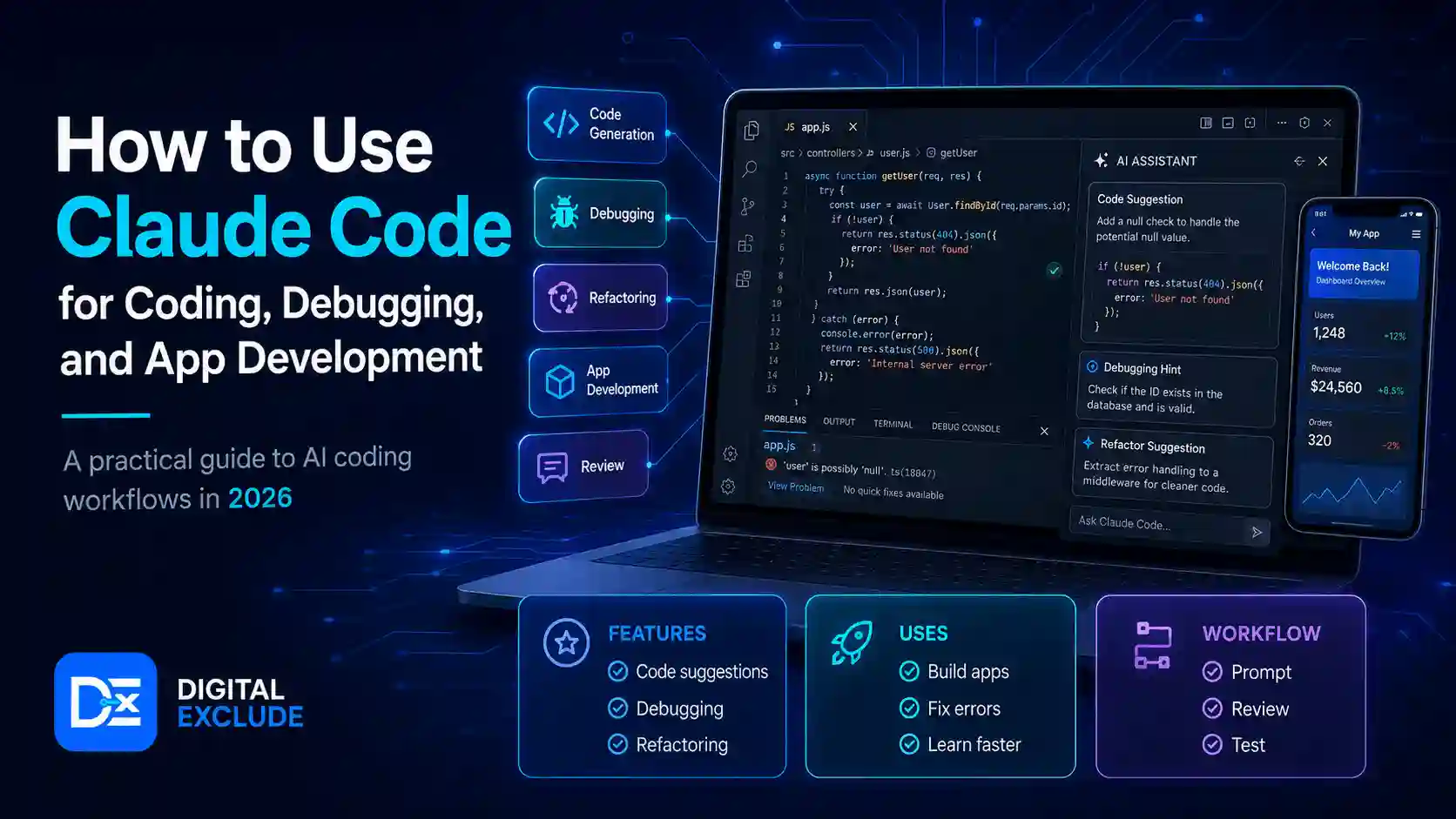
Claude Code is an AI coding assistant that works from your terminal and helps you understand codebases, edit files, debug issues, write tests, refactor code, use Git, and build apps with natural language prompts. It is useful for developers, coding students, freelance programmers, and software beginners who want help with real coding tasks, not just short code snippets.
Claude Code can read project files as needed, propose file changes, ask for approval before editing, run tests when available, and support workflows such as bug fixing, feature development, documentation updates, and code review. Anthropic’s quickstart says Claude Code works in the terminal and is also available through other interfaces such as web, desktop, VS Code, JetBrains IDEs, Slack, GitHub Actions, and GitLab.
Introduction
Claude Code is becoming popular among developers because it brings AI assistance closer to real coding work. Instead of copying code from a chatbot into your editor, you can ask Claude Code to inspect a project, explain how the app works, suggest changes, edit files, fix bugs, write tests, and help with Git commands.
The main problem is that many users want to use Claude Code for real development but are unsure how safe or reliable it is. A student may not know whether to trust generated code. A freelance programmer may worry about client repositories. A startup founder may want to build faster but does not want to ship broken or insecure code. A beginner may not know how to use the terminal properly.
This guide explains how to use Claude Code for coding, debugging, and app development in a practical way. It covers setup, workflows, examples, mistakes, security risks, pricing caution, and step-by-step tips.
What Claude Code Means
Claude Code is Anthropic’s command-line AI coding tool. It lets you interact with Claude from inside a project folder and ask it to help with development tasks. Anthropic’s support page describes Claude Code as a command-line tool that gives access to Claude models in the terminal and lets users delegate complex coding tasks while keeping transparency and control.
In simple words, Claude Code works like a coding partner inside your development environment.
It can help with:
- Understanding an unfamiliar project
- Explaining folder structure
- Finding the main entry point
- Editing code files
- Debugging errors
- Adding features
- Writing tests
- Refactoring modules
- Updating documentation
- Reviewing code changes
- Creating Git commits
- Resolving merge conflicts
- Building small apps or features step by step
Claude Code is not the same as a normal chatbot. A chatbot usually responds with code examples. Claude Code can work inside your actual project directory and help modify real files after approval.
Why Claude Code Matters in 2026
Claude Code matters in 2026 because AI-assisted development is shifting from simple code completion to agent-based coding workflows. Developers are now using AI tools to inspect projects, plan changes, run checks, write tests, review diffs, and support longer tasks.
Anthropic’s docs explain that Claude Code can analyze a project without the user manually adding context, find relevant files, show proposed changes, ask for approval, and make edits. It can also help with Git operations such as checking changed files, creating branches, writing commits, and resolving merge conflicts.
For developers, this can reduce time spent on repetitive work. For students, it can make debugging easier to understand. For freelance programmers, it can speed up client fixes. For startup founders, it can help build MVP features faster.
But there is an important warning: Claude Code can still make mistakes. It may misunderstand requirements, change more than expected, add unnecessary dependencies, or miss security issues. It should be used with tests, Git, human review, and clear prompts.
Main Practical Guide: How to Use Claude Code
1. How Do You Install Claude Code?
Anthropic’s quickstart lists installation options including native install, Homebrew, and WinGet. It also says Claude Code requires an account, such as Claude Pro, Max, Team, Enterprise, Claude Console API access, or supported cloud provider access.
Basic install examples from the official docs include:
# macOS, Linux, WSL
curl -fsSL https://claude.ai/install.sh | bash
# Windows PowerShell
irm https://claude.ai/install.ps1 | iex
# Windows CMD
curl -fsSL https://claude.ai/install.cmd -o install.cmd && install.cmd && del install.cmd
Anthropic’s advanced setup page lists requirements such as macOS 13.0 or later, Windows 10 1809 or later, Ubuntu 20.04 or later, Debian 10 or later, Alpine Linux 3.19 or later, 4GB or more RAM, an internet connection, and a supported shell such as Bash, Zsh, PowerShell, or CMD.
Beginner tip
If you are new to coding, start with a small local project. Do not start with a production app, client repository, payment system, or company codebase.
2. How Do You Start Claude Code in a Project?
After installing, open your terminal inside your project folder and run:
claude
Anthropic’s quickstart says you can start an interactive session from any project directory, use /help for commands, and use /resume to continue a previous conversation.
Good first prompts:
What does this project do?
Explain the folder structure
Where is the main entry point?
What technologies does this project use?
These prompts help Claude Code understand the project before making any changes.
3. How Can Claude Code Help With File Editing?
Claude Code can edit files, but the safer workflow is to ask it to explain the planned change first.
Example prompt:
Find where the login form is handled. Explain the current flow first. Do not edit files yet.
Then:
Add validation so users cannot submit an empty email or password. Show the proposed changes before editing.
Anthropic’s quickstart says Claude Code finds the appropriate file, shows proposed changes, asks for approval, and then makes the edit. It also says Claude Code asks for permission before modifying files, although users can approve individual changes or use “Accept all” mode for a session.
When to approve changes
Approve changes only when:
- The correct files are being edited
- The change matches your requirement
- No unrelated files are modified
- No secrets or API keys are exposed
- No unnecessary packages are added
- The change is small enough to review
4. How Can Claude Code Help With Debugging?
Claude Code is useful for debugging because it can inspect files, understand context, suggest fixes, and run tests if available. Anthropic’s quickstart says Claude Code can locate relevant code, understand context, implement a solution, and run tests if available when fixing a bug or adding a feature.
Bad prompt:
fix my app
Better prompt:
The signup page crashes when the email field is empty. Please find the cause, explain it, add a safe fix, and write a test for this case.
Even better:
The signup page crashes when the email field is empty. The error appears after clicking Submit. Expected behavior: show an error message and keep the user on the signup page. Actual behavior: blank screen. Please inspect the form validation and do not change the API route.
Debugging checklist
Before asking Claude Code to fix a bug, collect:
- Error message
- Screenshot or terminal output
- Steps to reproduce
- Expected result
- Actual result
- File or feature area
- Test command
- What should not be changed
This helps the Claude coding assistant produce a focused fix.
5. How Can Claude Code Help With App Development?
Claude Code can help build apps in small stages. It is better to break work into parts instead of asking it to build a full app in one prompt.
Anthropic’s quickstart recommends using step-by-step instructions for complex tasks, such as creating a database table, creating an API endpoint, and building a web page.
Example app development prompt:
We are building a simple expense tracker. First, create the basic folder structure and a README explaining the app. Do not add authentication yet.
Next prompt:
Add an expenses list page with fields for title, amount, category, and date. Use the existing project style.
Next prompt:
Add basic validation and write tests for empty title, negative amount, and invalid date.
This approach is safer than asking:
Build a complete expense tracker app with login, dashboard, charts, export, and database.
Why smaller prompts work better
Small prompts reduce the risk of:
- Wrong architecture
- Unwanted dependencies
- Broken routing
- Weak security
- Missing tests
- Large diffs that are hard to review
6. How Can Claude Code Help With Git?
Claude Code can help with everyday Git tasks. Anthropic’s quickstart shows examples such as checking changed files, creating a branch, showing recent commits, writing commit messages, and resolving merge conflicts.
Useful prompts:
What files have I changed?
Create a new branch called feature/signup-validation
Commit my changes with a descriptive message
Help me resolve this merge conflict
Safety tip
Do not let Claude Code push to a remote repository, delete branches, rewrite history, or run destructive Git commands unless you fully understand the impact.
7. How Can Claude Code Help With Tests?
Claude Code can write tests when the project already has a testing pattern.
Good prompt:
Write unit tests for the validation function. Follow the existing test style in this project.
Better prompt:
Write tests for a valid email, an empty email, an invalid email format, and a duplicate email error. Do not change production code unless needed.
Claude Code can also run tests if your project has a test command. Still, passing tests does not prove the code is perfect. It only proves that the tested cases passed.
What to review in AI-generated tests
Check whether tests cover:
- Valid input
- Empty input
- Invalid input
- Permission errors
- Network errors
- Edge cases
- Regression cases
- Security-related behavior
8. How Can Claude Code Help With Code Review?
Claude Code can review your changes and suggest improvements.
Example prompt:
Review my current changes. Look for bugs, missing tests, security issues, and unnecessary complexity.
Another example:
Review this pull request like a senior developer. Focus on edge cases, maintainability, and security.
Claude Code is useful as a second reviewer, but it should not replace human review. For professional work, a human developer should still check architecture, business logic, and production risk.
Real World Examples
Example 1: Student Debugging a JavaScript Error
A student gets this error:
Cannot read properties of undefined
Good Claude Code prompt:
The app crashes with “Cannot read properties of undefined” when opening the profile page. Please find where this value is used, explain why it happens, and suggest a safe fix before editing.
What Claude Code can do:
- Search for the profile page
- Find where undefined data is accessed
- Suggest optional chaining or a loading state
- Add a test if available
What the student should do:
- Read the explanation
- Understand why the bug happened
- Run the app manually after the fix
Example 2: Freelancer Fixing a Client Form
A freelance programmer has a client form that accepts invalid phone numbers.
Good prompt:
Find the contact form validation. Add phone number validation for Indian mobile numbers, show a clear error message, and do not change the email sending logic.
What to check before delivery:
- Does validation match the client’s country?
- Does the form still submit valid data?
- Is the error message user friendly?
- Did Claude change unrelated code?
- Was a test added?
Example 3: Startup Founder Building an MVP
A founder wants a basic dashboard for a SaaS product.
Good prompt:
Create a simple dashboard page using existing components. Show total users, active subscriptions, failed payments, and recent signups. Use mock data for now. Do not add new libraries.
Why this works:
- It defines scope
- It avoids premature backend work
- It prevents random dependency additions
- It creates a first version that developers can improve
Example 4: Beginner Creating a Simple App
A beginner wants to build a habit tracker.
Safer workflow:
- Ask Claude Code to create a README.
- Ask it to create a simple UI.
- Ask it to add local storage.
- Ask it to add edit and delete actions.
- Ask it to write tests.
- Ask it to explain each file.
This helps the beginner learn instead of blindly accepting a finished app.
Example 5: Developer Refactoring Old Code
A developer has a large file with repeated logic.
Good prompt:
Refactor this file by extracting repeated date formatting logic into a helper function. Keep the behavior the same and add tests for the helper.
What to avoid:
Do not ask Claude Code to refactor the whole project at once. Large refactors are harder to review and easier to break.
Claude Code vs Other Coding Assistants
| Tool Type | Best For | How It Helps | Main Limitation |
| Chat-based AI assistant | Learning and examples | Explains code and writes snippets | Usually outside the project |
| IDE autocomplete | Fast typing | Suggests code while you type | May not understand the full task |
| Claude Code | Project-based coding | Reads files, edits code, runs checks, and helps with Git | Needs terminal use and careful review |
| AI debugging tool | Error investigation | Helps identify causes and fixes | May miss the business context |
| AI app development tool | Building prototypes | Speeds up MVP creation | Can produce insecure or messy code |
| Human developer | Architecture and final responsibility | Reviews logic, security, and product fit | Slower for repetitive tasks |
Claude Code is strongest when you use it on a real project with clear instructions, Git, tests, and review.
Common Mistakes to Avoid
Mistake 1: Asking Vague Questions
Bad prompt:
Make this better
Better prompt:
Improve the checkout form error messages. Keep the layout unchanged and add tests for missing addresses and invalid phone numbers.
Mistake 2: Approving Changes Too Quickly
Claude Code can suggest useful edits, but every change needs review.
Check:
- Changed files
- New dependencies
- Deleted code
- Config changes
- Security impact
- Test coverage
- Build result
Mistake 3: Using It Directly on Production Code
Do not let an AI coding tool make changes directly on a production branch.
Better approach:
- Create a new Git branch
- Run Claude Code there
- Review the diff
- Run tests
- Open a pull request
- Merge only after review
Mistake 4: Sharing Secrets in the Project
Before using any AI coding assistant, check for secrets.
Do not expose:
- API keys
- Private tokens
- Database passwords
- Payment keys
- Client credentials
- .env files
- SSH keys
- Production logs with private data
Mistake 5: Skipping Tests
Claude Code can write code quickly, but speed without tests is risky.
Always ask:
Add tests for this change and run the existing test suite if available.
Mistake 6: Using Unsafe Permission Settings
Anthropic’s engineering post on Claude Code auto mode explains the tradeoff between sandboxing, manual prompts, and bypassing permissions. It also warns that the –dangerously-skip-permissions flag disables permission prompts and is unsafe in most situations.
For beginners, manual approval is safer than giving full autonomy.
Best Practices: Step by Step Claude Code Tutorial
Step 1: Start With a Safe Project
Use a small project, test repo, or personal app first.
Avoid starting with:
- Client production code
- Payment systems
- Authentication systems
- Company private repos
- Healthcare, finance, or legal data
- Large apps without tests
Step 2: Open Claude Code in the Project Folder
Run:
cd /path/to/project
claude
Then ask:
what does this project do?
This helps Claude Code inspect the project before editing.
Step 3: Ask for Analysis Before Changes
Use:
Analyze the code related to user login. Explain the flow and do not edit files yet.
This prevents early wrong edits.
Step 4: Give a Focused Task
Use a clear request:
Fix the bug where users can submit an empty login form. Show an error message, keep the existing UI style, and add tests.
Step 5: Review the Proposed Diff
Before approval, check:
- Does it edit the expected files?
- Does it follow the existing style?
- Does it add unnecessary packages?
- Does it remove important logic?
- Does it handle edge cases?
Step 6: Run Tests and Build
Ask Claude Code:
Run the existing test suite and explain any failures.
Also, run tests yourself when possible.
Step 7: Commit in Git
Use:
summarize the changes and suggest a commit message
Then review the message before committing.
Step 8: Use Claude Code for Learning
For students and beginners, ask:
Explain this fix line by line in simple language.
This turns Claude Code from a code generator into a learning tool.
Practical Prompt Templates
| Goal | Prompt Template |
| Understand project | “Explain what this project does, the main folders, and the app entry point.” |
| Debug error | “This error happens when I do [steps]. Expected [result], actual [result]. Find the cause before editing.” |
| Add feature | “Add [feature] using existing project style. Do not add dependencies unless necessary.” |
| Write tests | “Write tests for [cases]. Follow the existing test style.” |
| Refactor | “Refactor [file/module] without changing behavior. Keep public APIs unchanged.” |
| Code review | “Review my changes for bugs, security issues, missing tests, and unnecessary complexity.” |
| Git help | “Show what files changed and suggest a clear commit message.” |
| Learning | “Explain this function like I am a beginner and show one simple example.” |
Security and Privacy Checklist
Before using Claude AI for developers or any AI debugging tool, check:
| Area | Question to Ask |
| Repository | Does this project contain private client code? |
| Secrets | Are .env, tokens, or API keys present? |
| Branch | Am I working on a safe feature branch? |
| Permissions | Can Claude edit only what is needed? |
| Tests | Are tests available before changes? |
| Data | Does the repo include customer or production data? |
| Dependencies | Will new packages need review? |
| Logs | Do logs contain private user data? |
| Deployment | Could this change affect production? |
| Policy | Does my company or client allow AI coding tools? |
Pricing and Tool Limitations
Claude Code access and usage can depend on your plan, account type, region, usage limits, and provider setup. Anthropic’s pricing page currently lists Claude Pro as including Claude Code and notes that usage limits apply, prices may exclude tax, and plans are subject to change.
Before relying on Claude Code for professional work, check:
- Current plan
- Usage limits
- API credits if using Console
- Team or Enterprise controls
- Data and privacy policy
- Supported region
- Whether your workflow needs cloud provider access
- Whether usage may become expensive for long tasks
Pros and Cons of Claude Code
| Pros | Cons |
| Works inside real project folders | Requires terminal comfort |
| Can read project files as needed | Can misunderstand vague tasks |
| Helps with debugging and tests | Tests may still be incomplete |
| Supports Git related workflows | Unsafe commands need caution |
| Saves time on repetitive edits | Needs human review |
| Useful for students and professionals | Private repos need policy checks |
| Helps explain unfamiliar code | Can create overconfidence |
| Can support app development | Large tasks can create messy diffs |
Final Recommendation
Use Claude Code as a practical coding partner, not as an automatic replacement for a developer. It is useful for debugging, file editing, tests, refactoring, documentation, Git help, and app development when the task is clear and the code is reviewed.
For beginners, start with a small project and ask Claude Code to explain before editing. For students, use it to learn debugging and understand code. For freelance programmers, use it to speed up focused client fixes, but protect private code and review every diff. For developers, use it with Git branches, tests, code review, and security checks.
A safe workflow is:
- Open Claude Code inside a project.
- Ask it to analyze before editing.
- Give a focused task.
- Review proposed changes.
- Run tests.
- Check security.
- Commit only after review.
Claude Code can make coding faster, but reliable software still needs human judgment.
FAQs
-
What is Claude Code?
Claude Code is an AI coding assistant from Anthropic that runs from the terminal and helps users understand codebases, edit files, debug issues, write tests, refactor code, and work with Git.
-
Is Claude Code good for beginners?
Yes, Claude Code can help beginners understand project structure, explain errors, and learn debugging. Beginners should use it for learning and small projects first, not production code.
-
Can Claude Code edit files automatically?
Claude Code can edit files, but Anthropic’s quickstart says it asks for permission before modifying files. Users can approve individual changes or use broader approval modes for a session.
-
Can Claude Code build a full app?
Claude Code can help build app features and small apps, but it is safer to work step by step. Ask it to build one feature at a time, add tests, and explain changes.
-
Does Claude Code work on Windows?
Yes. Anthropic’s setup page lists Windows 10 1809 or later and Windows Server 2019 or later as supported, along with macOS and Linux options.
Conclusion
Claude Code is a useful AI coding assistant for developers, students, freelance programmers, and software beginners who want help with real coding tasks. It can explain projects, edit files, fix bugs, write tests, assist with Git, and support AI app development workflows.
The safest way to use Claude Code is to stay in control. Give clear prompts, ask for analysis before edits, approve changes carefully, run tests, protect secrets, and review every diff before committing. Claude Code can save time and make coding easier, but human review is still needed for reliable, secure, and production-ready software.