Quick Answer
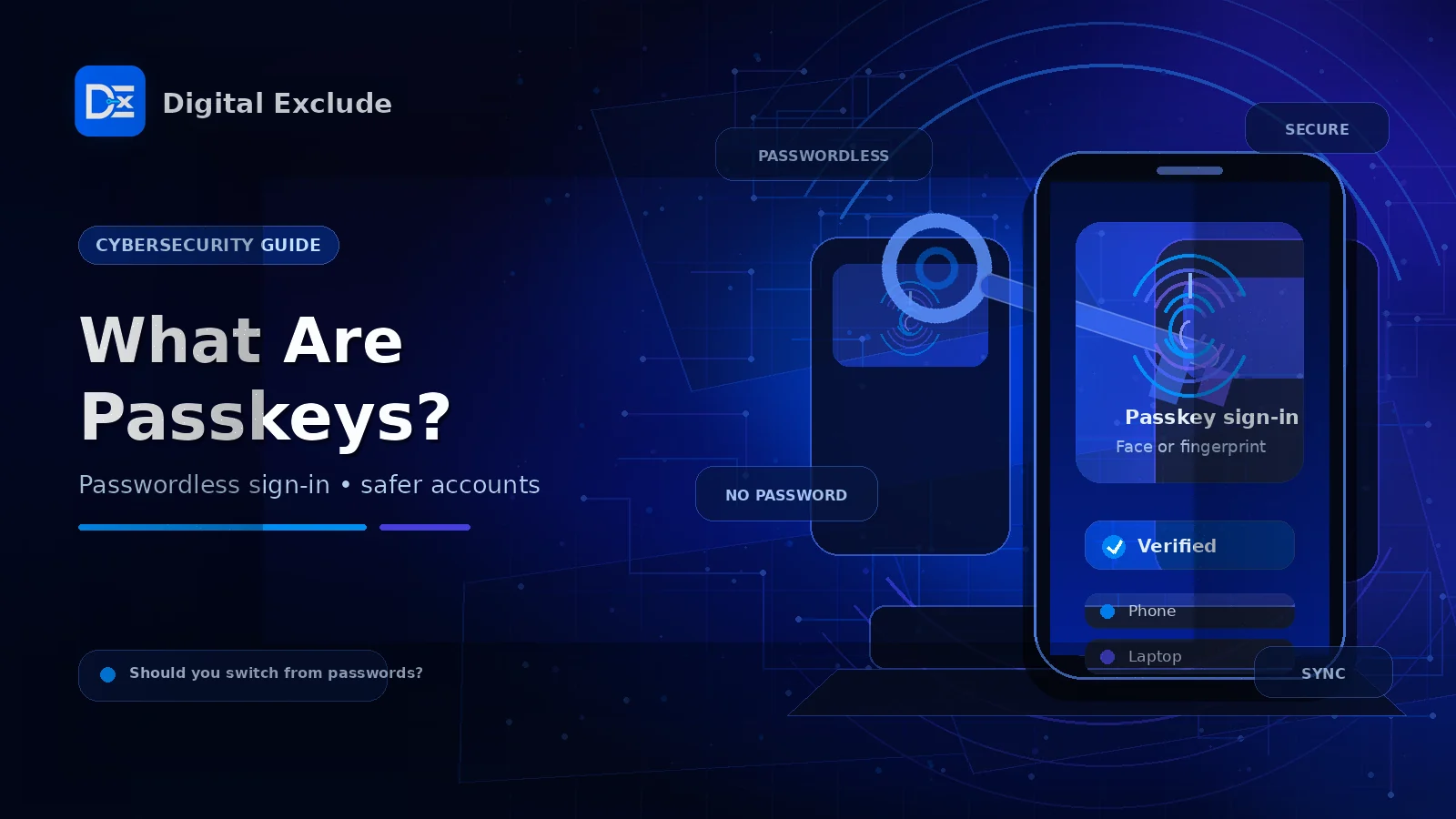
Passkeys are a safer and easier way to sign in to apps and websites without typing a password. Instead of remembering a password, you unlock your device with your fingerprint, face scan, screen lock PIN, or a security key. The website never receives a reusable password, which makes passkeys much harder to steal through phishing or data breaches.
Most general users, students, and small business teams should start using passkeys for important accounts when available. Do not remove all passwords immediately. First, set up recovery options, keep your devices secure, and test passkeys on your most-used accounts.
Introduction
Passwords have been a daily headache for years. People forget them, reuse them, save them in unsafe places, or make them too simple. Attackers know this, so they use phishing emails, fake login pages, leaked password databases, and credential stuffing to break into accounts.
That is why many companies now support passkeys.
If you are asking what are passkeys, the simple answer is this: passkeys are a passwordless login method designed to make sign-in easier and more secure. You can use your phone, laptop, fingerprint, face scan, PIN, or hardware security key to prove it is really you.
This guide explains passkeys in simple language. You will learn how passkeys work, how passkeys vs passwords compare, where users should be careful, how to set them up, and whether you should switch from passwords in 2026.
What Are Passkeys?
Passkeys are digital sign-in credentials that let you access an app or website without entering a traditional password. They are based on public key cryptography, which means your device keeps a private key and the website keeps a matching public key.
In normal English:
- Your device keeps the secret part.
- The website keeps the public part.
- You unlock your device to approve the sign-in.
- The website checks that the passkey matches.
- Your password is not typed, stored, reused, or shared.
A passkey can be unlocked with:
- Fingerprint
- Face scan
- Device PIN
- Screen lock
- Password manager
- Hardware security key
This is why passkeys are often called a form of passwordless login.
Short Answer
Passkeys replace typed passwords with device-based authentication. They are designed to reduce phishing, password reuse, and stolen login credentials.
Passkeys Explained in Simple Terms
Think of a password as a secret word that both you and the website know. If that secret leaks, someone else may use it.
A passkey works differently.
When you create a passkey, your device creates two connected keys:
| Key Type | Where It Stays | What It Does |
| Private key | Stays on your device or password manager | Proves your identity during login |
| Public key | Stored by the website or app | Verifies that your private key matches |
The important part is that the private key is not sent to the website. You approve the login locally using your device unlock method.
This makes passkeys safer than passwords in many common attack situations.
For example, if someone creates a fake login page, a passkey should not work on that fake domain because passkeys are tied to the real website or app. That is a big reason passkeys are considered phishing-resistant.
How Passkeys Work
Here is the basic flow.
| Step | What Happens |
| 1 | You choose “Create passkey” on a supported website or app |
| 2 | Your device or password manager creates a unique passkey |
| 3 | The private key stays with you |
| 4 | The public key is saved by the website |
| 5 | Next time you sign in, the website asks for passkey approval |
| 6 | You unlock your device with face, fingerprint, PIN, or security key |
| 7 | The website verifies the login without receiving a password |
A normal user does not need to understand cryptography to use passkeys. The practical experience feels like unlocking your phone.
Why Passkeys Matter in 2026
Passkeys matter in 2026 because account security problems are getting more personal and more common.
Users now manage important accounts for:
- Banking
- Social media
- School portals
- Cloud storage
- Shopping
- Work tools
- Password managers
- AI tools
- Business apps
- Team communication
One weak or reused password can create a chain reaction. If your email account is compromised, an attacker may reset passwords for other accounts. If a small business employee falls for a fake login page, company files or customer data may be exposed.
This is why passkeys are becoming important for general users, students, and SMB teams. They reduce the need to remember passwords and make phishing attacks harder.
Passkeys do not make every security problem disappear. You still need secure devices, recovery options, trusted apps, and good privacy habits. But passkeys remove one of the weakest parts of online security: reusable passwords.
Passkeys vs Passwords
| Feature | Passwords | Passkeys |
| User experience | You type or paste a password | You unlock your device |
| Phishing risk | High if user enters password on fake site | Much lower because passkeys are tied to the real site |
| Reuse risk | Many people reuse passwords | Each passkey is unique |
| Data breach impact | Password hashes may be stolen | Public key alone is not useful for login |
| Memory burden | User must remember or store password | No password to remember |
| Sharing risk | Easy to share or leak | Harder to copy or give away |
| Device dependency | Works anywhere if you know the password | Needs your device, password manager, or security key |
| Recovery complexity | Password reset flow | Depends on provider and backup options |
| Best use | Still needed where passkeys are unavailable | Strong option for supported accounts |
Short Answer
In passkeys vs passwords, passkeys are usually safer and easier for supported accounts. Passwords are still needed as backup on many services, so users should switch gradually.
Should You Switch from Passwords to Passkeys?
Yes, you should start switching to passkeys for important accounts when the option is available.
Start with:
- Google account
- Apple account
- Microsoft account
- Password manager
- Email account
- Banking or payment apps if supported
- Work accounts
- School accounts
- Cloud storage accounts
- Social media accounts
Do not switch blindly. First check:
- Do you have recovery email and phone updated?
- Do you have backup codes saved?
- Do you use a trusted password manager?
- Can you access the account from a second device?
- Do you understand how to remove or replace a lost device?
- Does your workplace allow passkeys?
- Are your phone and laptop protected with screen locks?
For most people, the best approach is:
Use passkeys where available, keep a strong password manager, and keep account recovery settings updated.
Main Practical Guide: How to Start Using Passkeys
1. Check Which Accounts Support Passkeys
Start with accounts you use daily.
Good places to check:
- Google Account security settings
- Apple Passwords or iCloud Keychain
- Microsoft account security settings
- Password manager security dashboard
- Banking app security settings
- Work identity provider settings
- School portal security settings
Look for terms such as:
- Passkey
- Passwordless sign-in
- Security key
- FIDO2
- Face ID sign-in
- Windows Hello
- Sign in with device
2. Secure Your Device First
A passkey is only as safe as the device or account that stores it.
Before creating passkeys:
- Add a strong screen lock.
- Turn on biometric unlock if you trust the device.
- Keep your operating system updated.
- Avoid shared devices for important passkeys.
- Do not leave your phone or laptop unlocked.
- Remove old devices from important accounts.
- Use device encryption where available.
If someone can unlock your device, they may be able to approve sign-ins. That is why device security matters.
3. Create a Passkey for One Important Account
Start with one account before changing everything.
Example:
- Open your account security settings.
- Find “Passkeys” or “Passwordless sign-in.”
- Choose “Create passkey.”
- Approve the setup with your fingerprint, face scan, PIN, or security key.
- Sign out and test signing in again.
- Make sure recovery options still work.
Do this on a personal account first if you are not confident. For work accounts, follow your company policy.
4. Set Up Backup and Recovery
This step is important. Do not skip it.
Check:
- Recovery email
- Recovery phone number
- Backup codes
- Trusted devices
- Password manager access
- Hardware security key backup
- Account recovery process
If you lose your phone or laptop, you need a way back into your account.
Practical Tip
Keep at least two recovery methods. For example, use a passkey on your phone and also keep backup codes or a second trusted device.
5. Use a Password Manager Alongside Passkeys
A password manager is still useful because not every website supports passkeys.
A good password manager can help you:
- Store remaining passwords
- Save passkeys if supported
- Generate strong passwords
- Find reused passwords
- Detect weak passwords
- Sync credentials across devices
- Organize personal and work logins
If you want more daily security tools, Digital Exclude’s guide to best productivity apps also covers password management as part of a safer productivity setup.
6. Keep Passwords Where Passkeys Are Not Supported
Passkeys are growing, but not every website supports them yet.
For accounts without passkeys:
- Use a unique password.
- Store it in a trusted password manager.
- Turn on multi-factor authentication.
- Avoid SMS codes when a stronger option is available.
- Never reuse passwords.
- Watch for fake login pages.
Passkeys are a strong improvement, but the password era is not fully over.
Real World Examples
Example 1: Student Using Gmail, School Portal, and Notes Apps
A student uses Gmail, cloud notes, online classes, and a school portal. The same password is used on multiple sites.
Risk:
If one password leaks, attackers may try it on email, school tools, and social media.
Better setup:
- Create a passkey for the Google account.
- Use a password manager for school sites.
- Turn on MFA where passkeys are unavailable.
- Keep recovery email and phone updated.
- Do not save passwords in random screenshots or notes.
Example 2: Small Business Owner Managing Client Accounts
A small business owner uses email, cloud storage, invoicing software, social media, and payment tools.
Risk:
A stolen email password can expose invoices, client files, reset links, and business communication.
Better setup:
- Add passkeys to email and Microsoft or Google accounts.
- Use separate work and personal accounts.
- Avoid shared admin logins.
- Use role-based access for team members.
- Review account recovery settings every quarter.
- Read Digital Exclude’s cloud security risks and best practices if your business uses cloud apps.
Example 3: Family Member Who Falls for Phishing Links
A user receives a fake message saying their account will be blocked. They click the link and see a login page.
With passwords:
They may type the password into the fake page.
With passkeys:
The passkey should not authenticate on the fake domain. This reduces the chance of losing the account.
Still be careful:
Passkeys reduce phishing risk, but users should still check URLs, avoid suspicious links, and never approve sign-ins they did not start.
Example 4: SMB Team Moving Toward Passwordless Login
A small team uses shared tools for email, files, customer support, and finance.
Risk:
Employees reuse passwords or send login details over chat.
Better setup:
- Use company-managed accounts.
- Enable passkeys where supported.
- Remove shared passwords.
- Use password managers with team vaults.
- Add MFA for admin accounts.
- Train users on phishing and recovery.
- Keep an access removal process for employees who leave.
For broader safety awareness, Digital Exclude’s article on cybersecurity threats in 2026 is a useful internal read.
Common Mistakes to Avoid
Mistake 1: Removing Passwords Before Recovery Is Ready
Some users rush into passwordless login without checking recovery settings.
Better approach:
Create passkeys first, test them, update recovery email and phone, save backup codes, and only then consider reducing password dependence.
Mistake 2: Using Passkeys on Shared Devices
A shared family laptop, office reception computer, or public device is not a good place for important passkeys.
Better approach:
Use passkeys on personal devices you control. For shared devices, use temporary login methods and sign out fully.
Mistake 3: Assuming Passkeys Work Everywhere
Passkey support depends on the website, app, operating system, browser, password manager, and device.
Better approach:
Check support before relying on passkeys as your only login method.
Mistake 4: Ignoring Lost Device Planning
If your passkey is stored on one phone and you lose that phone, recovery may become stressful.
Better approach:
Set up more than one trusted recovery option.
Mistake 5: Thinking Biometrics Are Sent to Websites
Many users worry that passkeys send fingerprints or face scans to websites.
Better explanation:
Your biometric unlock is used locally on your device. The website receives cryptographic proof, not your fingerprint or face data.
Mistake 6: Approving Sign-Ins Without Thinking
Passkeys make sign-in fast, but speed can become risky if users approve prompts automatically.
Better approach:
Only approve sign-ins you started. If a prompt appears randomly, reject it and review account activity.
Best Practices: Step-by-Step Tips
Step 1: Start With Your Email Account
Your email account is often the key to your digital life. If someone controls your email, they may reset other accounts.
Start by adding a passkey to:
- Gmail
- Outlook
- iCloud
- Work email
- School email
Step 2: Add Passkeys to Your Password Manager
If your password manager supports passkeys, set it up carefully.
Check:
- Sync settings
- Account recovery
- Device approval
- Emergency access
- Master password strength
- MFA settings
Step 3: Protect Financial and Shopping Accounts
Use passkeys where available for:
- Banking
- Payment apps
- Shopping sites
- Investment apps
- Tax accounts
- Business payment tools
If passkeys are not available, use strong, unique passwords and MFA.
Step 4: Keep Your Devices Updated
Passkeys depend on modern browser and operating system support.
Update:
- iPhone or Android
- Windows or macOS
- Chrome, Edge, Safari, or Firefox
- Password manager app
- Banking and work apps
Step 5: Use a Hardware Security Key for High-Risk Accounts
A hardware security key is a physical device used for secure sign-in. It can be useful for:
- Business owners
- Admin accounts
- Journalists
- Developers
- Finance teams
- People at higher risk of targeted attacks
You do not need one for every account, but it is worth considering for your most sensitive accounts.
Step 6: Review Account Recovery Every 3 Months
Check:
- Is your recovery email still active?
- Is your phone number current?
- Are old devices removed?
- Are backup codes stored safely?
- Are shared accounts still needed?
- Are old employees removed from business tools?
Passkeys vs Passwords: Which Should You Use?
| Use Case | Better Option | Why |
| Main email account | Passkey plus backup recovery | Stronger protection against phishing |
| School account | Passkey if supported | Easier for students and safer than reused passwords |
| Small business admin account | Passkey or security key | Protects sensitive business access |
| Random one-time website | Password manager | Passkeys may not be supported |
| Banking app | Passkey if supported | Easier and safer sign-in |
| Shared team login | Avoid shared login | Use individual accounts and roles |
| Public computer | Avoid passkey setup | Use temporary login and sign out |
| High-risk account | Passkey plus hardware security key | Stronger protection |
Pros and Cons of Passkeys
| Pros | Cons |
| Easier than remembering passwords | Not supported everywhere yet |
| Strong protection against phishing | Recovery can confuse users |
| No reusable password to steal | Device loss must be planned for |
| Works with fingerprint, face scan, PIN, or security key | Some users may find setup unfamiliar |
| Reduces password reuse risk | Cross-platform experience can vary |
| Useful for personal and business accounts | Work accounts may need admin approval |
Security, Privacy, and Tool Limitations
Passkeys are safer than passwords in many cases, but they are not magic.
Be careful with:
- Lost phones or laptops
- Weak device PINs
- Shared devices
- Poor account recovery
- Old browsers
- Unsupported websites
- Fake support calls
- Work accounts with strict IT rules
- Password managers with weak recovery settings
- Approving prompts you did not request
Privacy point:
Your fingerprint or face scan is used to unlock your device. It is not supposed to be sent to each website. The website verifies the passkey using cryptographic proof.
Pricing point:
Passkeys are usually free for normal users. Businesses may pay for identity management tools, password managers, hardware security keys, or enterprise security plans if they want centralized control.
Final Recommendation
For general users, students, and SMB teams, passkeys are worth using in 2026.
Use them first on important accounts:
- Password manager
- Cloud storage
- Banking and payment apps
- Work or school accounts
- Social media
- Business admin tools
Do not delete every password overnight. A safer path is to turn on passkeys, keep a password manager, update recovery settings, and test access from more than one trusted device.
If you manage a small team, create a basic rollout plan:
- Start with admin accounts.
- Enable passkeys where supported.
- Keep MFA active.
- Remove shared passwords.
- Train users on recovery and phishing.
- Review access every quarter.
The best security improvement is the one people can actually use. Passkeys are promising because they improve security while making login easier.
FAQs
-
What are passkeys?
Passkeys are passwordless sign-in credentials that let users log in with a fingerprint, face scan, device PIN, password manager, or security key instead of typing a password.
-
Are passkeys safer than passwords?
Yes, passkeys are generally safer than passwords because they are unique for each account, harder to phish, and do not require a reusable password to be stored or typed.
-
How do passkeys work?
Passkeys work with public key cryptography. Your device keeps a private key, while the website stores a public key. When you sign in, your device proves it has the matching private key without sharing it.
-
Should I switch from passwords to passkeys?
Yes, you should start using passkeys on important accounts when available. Keep recovery options and a password manager in place because many websites still depend on passwords.
-
What happens if I lose my device with a passkey?
If you lose your device, account recovery depends on the service, your password manager, synced passkeys, backup device, recovery email, phone number, or backup codes. Set these up before relying fully on passkeys.
Conclusion
What are passkeys? They are a safer, easier way to sign in without typing passwords. They use your device, biometric unlock, PIN, password manager, or security key to confirm your identity without sharing a reusable secret with the website.
For most people, passkeys are a smart upgrade. They reduce phishing risk, remove the pressure to remember complex passwords, and make account security easier for daily use. Still, users should switch carefully. Keep recovery options updated, secure your devices, use a password manager, and avoid approving sign-ins you did not start.
Passkeys are not perfect, but they are one of the most practical steps users and small teams can take toward safer passwordless login in 2026.