
Quick Answer
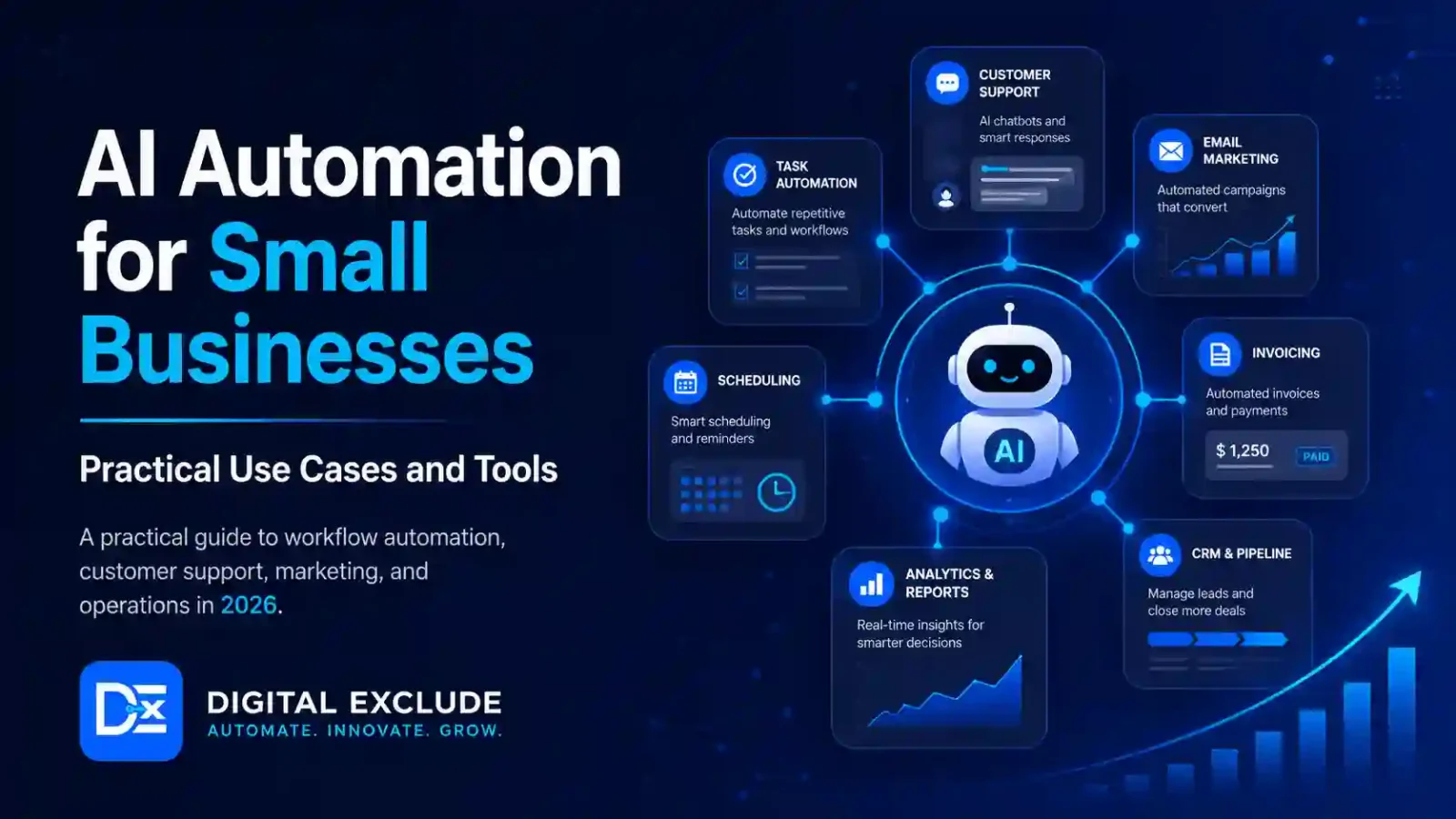
AI automation for small businesses means using AI tools and workflow automation platforms to handle repetitive tasks such as lead follow-up, customer support drafts, email sorting, social media planning, meeting notes, invoice reminders, data entry, and reporting. It helps small teams save time, reduce manual work, and stay organized without hiring extra staff immediately.
The best approach is to automate low-risk, repeated tasks first. Start with simple workflows such as saving form leads to a spreadsheet, drafting email replies, summarizing customer messages, creating weekly task reminders, or generating social post ideas. Avoid automating payments, legal replies, sensitive customer data, or account changes until you have proper review, permissions, and security controls.
Introduction
Small businesses are interested in AI, but many owners are still unsure where to begin. Some hear about AI agents and automation platforms, but they do not know which tasks can be automated safely. Others worry about wasting money on tools they will not use. Some are concerned about privacy because customer names, emails, invoices, payment details, and business documents may be involved.
This is the real problem: small businesses want to use AI but do not know which daily tasks can be automated without increasing risk or cost.
This guide explains AI automation for small businesses in simple language. It covers practical use cases, tools to consider, mistakes to avoid, privacy cautions, step-by-step setup tips, and a clear recommendation for small business owners, freelancers, marketers, and startup founders.
What AI Automation for Small Businesses Means
AI automation for small businesses means combining AI tools with automation workflows so that routine business tasks can be handled faster with less manual effort.
A simple automation follows a rule:
“If this happens, do that.”
Example:
“If someone fills out a website contact form, add the lead to Google Sheets and send a notification.”
AI automation goes one step further. It can understand text, summarize information, classify messages, draft replies, extract data, or suggest next actions.
Example:
“If someone fills out a website contact form, summarize the request, label the lead as high or low priority, add it to the CRM, and draft a reply for review.”
That is the difference between basic automation and AI workflow automation.
Why AI Automation Matters in 2026
AI automation matters in 2026 because small businesses are expected to do more with fewer people. A small team may handle sales, customer support, marketing, admin, reporting, payments, content, and follow-ups at the same time.
AI automation tools can help with:
- Reducing repetitive work
- Replying faster to leads
- Organizing customer requests
- Creating first drafts of emails and posts
- Summarizing meetings and calls
- Updating simple records
- Tracking missed tasks
- Preparing reports
- Creating internal checklists
- Improving business productivity
Tools such as Zapier, Make, HubSpot Breeze, and Microsoft Copilot Studio are adding AI agents, workflow builders, and business automation features. These platforms can connect apps, move information between systems, and help teams automate structured tasks. The key is not to automate everything. The key is to automate the right tasks with proper review.
Main Practical Guide: Best AI Automation Use Cases for Small Businesses
1. Lead Capture and Follow Up
Lead follow-up is one of the best starting points for small business automation.
A lead may come from:
- Website contact form
- Facebook ad
- LinkedIn message
- WhatsApp inquiry
- Landing page
- Webinar form
- Google Business Profile
- Referral form
Simple Automation
When a lead fills out a form:
- Add the lead to a spreadsheet or CRM.
- Send the owner a notification.
- Create a follow-up task.
- Send a basic thank-you email.
AI Automation
AI can improve this by:
- Summarizing the inquiry
- Classifying lead type
- Detecting urgency
- Drafting a personalized reply
- Suggesting the next step
- Assigning the lead to the right person
Example
A digital marketing freelancer receives a contact form message:
“We need SEO help for our Shopify website. Traffic dropped last month.”
An AI workflow can summarize:
“Potential SEO lead. Shopify website. Traffic decline issue. Needs audit or consultation.”
Then it can draft a reply:
“Thanks for reaching out. We can review your Shopify SEO setup and traffic drop. Please share your website URL and the period when the decline started.”
Be Careful
Do not let AI send sales promises automatically. Let it draft replies, then review before sending.
2. Customer Support Drafts
AI tools for business can help small teams handle repeated customer questions.
Common questions include:
- Order status
- Refund policy
- Pricing
- Service details
- Appointment availability
- Product setup
- Delivery timelines
- Warranty terms
Simple Automation
When a customer submits a question:
- Create a support ticket.
- Send confirmation.
- Notify the team.
AI Automation
AI can:
- Read the message
- Identify the question type
- Suggest a reply
- Find relevant help article
- Summarize the customer issue
- Mark urgent cases
Example
A small online store gets this message:
“My order has not arrived, and the tracking link is not working.”
AI can draft:
“Sorry for the inconvenience. Please share your order number so we can check the shipping status and update you.”
Be Careful
AI should not approve refunds, promise compensation, or change order status without human review.
3. Email Sorting and Inbox Summaries
Small business owners often waste time reading repeated emails. AI automation can help by sorting and summarizing the inbox.
Useful Automations
- Label sales inquiries
- Flag urgent messages
- Summarize unread emails
- Draft short replies
- Create follow-up reminders
- Extract meeting requests
- Save invoices to a folder
Example
Every morning, an AI workflow can create a short inbox summary:
- 3 new leads
- 2 pending client replies
- 1 invoice received
- 1 meeting reschedule request
- 4 low-priority newsletters
This helps owners start the day with priorities instead of reading every email one by one.
Be Careful
Email contains sensitive data. Use approved tools, review app permissions, and avoid giving full mailbox access to unknown AI tools.
4. Social Media Planning
Marketers, freelancers, and small business owners can use AI for social media content planning.
AI can help with:
- Post ideas
- Caption drafts
- Hashtag suggestions
- Content calendars
- Repurposing blogs into posts
- Turning customer FAQs into posts
- Creating LinkedIn post drafts
- Summarizing competitor content themes
Example
A local fitness trainer can ask AI to create weekly post ideas:
- Monday: beginner workout tip
- Tuesday: client FAQ
- Wednesday: nutrition reminder
- Thursday: short reel idea
- Friday: testimonial format
- Saturday: class schedule post
Be Careful
Do not publish AI content without editing. Add real experience, photos, examples, client results, and brand tone. Also avoid making health, finance, legal, or performance claims without proof.
5. Meeting Notes and Action Items
AI automation tools can help summarize meetings and create action items.
Useful Workflow
After a client meeting:
- Generate a meeting summary.
- Extract action items.
- Add tasks to project management tool.
- Send a draft follow up email.
- Add deadlines to calendar.
Example
A startup founder has a product planning call. AI can summarize:
- Client wants payment integration by next month.
- Design review is pending.
- Developer needs API access.
- Founder will send the updated scope by Friday.
Be Careful
Meeting notes may include confidential client information. Get consent where required, use trusted tools, and check summaries before sharing.
6. Invoice and Payment Reminders
Small businesses often lose time chasing payments. AI automation can help create reminders and track unpaid invoices.
Useful Automation
- Detect unpaid invoices
- Send reminder drafts
- Notify the owner before the due date
- Create overdue payment list
- Update payment status after confirmation
Example
If an invoice is 5 days overdue, the system can draft a polite reminder:
“Hi, this is a quick reminder that invoice #104 is still pending. Please let us know if you need any details from our side.”
Be Careful
Do not automate aggressive payment messages. Always check the customer relationship, payment history, and contract terms before sending reminders.
7. Reporting and Dashboards
AI workflow automation can help small teams create simple reports from business data.
Reports may include:
- Weekly leads
- Sales inquiries
- Website form submissions
- Customer support volume
- Ad campaign notes
- Social content performance
- Revenue summary
- Missed follow-ups
Example
Every Friday, AI can summarize:
- 25 new leads
- 8 qualified inquiries
- 4 booked calls
- 3 delayed replies
- 2 urgent customer issues
- Best performing social post
Be Careful
AI can summarize data incorrectly if the source is messy. Check numbers before sharing reports with clients, investors, or partners.
8. Content Repurposing
Small businesses often create one piece of content and then forget to reuse it. AI can turn one content asset into several useful formats.
Example
A blog post can become:
- LinkedIn post
- Instagram caption
- Email newsletter
- Short video script
- FAQ section
- Sales call talking points
- Carousel content
Be Careful
AI repurposing should not create duplicate, low-quality content. Edit each version for the platform and audience.
9. Website Chat and FAQs
AI chatbots can answer basic website questions when trained or configured properly.
Good chatbot topics:
- Opening hours
- Service details
- Pricing range
- Appointment booking
- Basic product information
- Contact details
- Delivery policy
- Return process
Be Careful
Do not let a chatbot answer legal, medical, financial, or complex complaint issues without human escalation.
A safer setup is:
- AI answers basic questions
- AI creates a support ticket for complex issues
- Human handles complaints, refunds, and sensitive cases
10. Internal SOPs and Task Checklists
Small businesses often depend on memory instead of documented processes. AI can help convert repeated work into checklists.
Examples:
- New client onboarding checklist
- Blog publishing checklist
- Order packing checklist
- Weekly reporting checklist
- Invoice creation checklist
- Social media posting checklist
- Hiring interview checklist
Example
A freelancer can ask AI:
“Create a client onboarding checklist for an SEO project.”
The result may include:
- Confirm scope
- Collect website access
- Collect GA4 and Search Console access
- Review current rankings
- Prepare audit sheet
- Create a communication channel
- Set the first reporting date
Be Careful
Review SOPs with real team experience. AI may miss details specific to your industry or client process.
AI Automation Tools to Consider
1. Zapier
Zapier is one of the most popular AI automation platforms for connecting apps and building workflows. Its official site says it connects AI workflows, agents, and apps across more than 9,000 apps. This makes it useful for small businesses that use many common tools such as Gmail, Google Sheets, Slack, HubSpot, Trello, Notion, and CRMs.
Best for:
- Beginners
- Lead capture workflows
- Email automation
- App-to-app automation
- Small business operations
- Simple AI workflow automation
Be careful:
Costs can grow as task volume increases. Start with a small workflow and monitor usage.
2. Make
Make is a visual automation platform that helps users build workflows on a visual canvas. Its official site says it supports AI and agentic workflows, AI agents, and hundreds of AI app integrations.
Best for:
- Visual workflow builders
- Multi-step automations
- Teams that want more control
- Marketers and operations users
- Users who like seeing workflow paths
Be careful:
Complex workflows can become hard to maintain. Document every automation clearly.
3. Microsoft Copilot Studio
Microsoft Copilot Studio is useful for businesses already using Microsoft 365, Teams, SharePoint, Outlook, and Microsoft business tools. Microsoft describes Copilot Studio as a SaaS agent platform for building AI agents and agentic workflows to support business processes.
Best for:
- Microsoft 365 users
- Internal business agents
- Enterprise style workflows
- Teams needing governance
- Knowledge-based assistants
Be careful:
This may be more than a very small business needs at the beginning. Check licensing, admin setup, and data governance.
4. HubSpot Breeze
HubSpot Breeze is HubSpot’s AI layer for marketing, sales, and service teams. HubSpot describes Breeze as a collection of AI tools and agents built into the customer platform.
Best for:
- Sales teams
- Marketing teams
- CRM users
- Customer service teams
- Lead follow-up
- Content and customer insights
Be careful:
It is most useful if you already use HubSpot. If your business does not need a CRM, starting with HubSpot only for AI may be too much.
5. ChatGPT for Business Workflows
ChatGPT can help small businesses create drafts, summarize documents, plan content, write SOPs, analyze files, and support research. It can also connect with tools depending on the plan and setup.
Best for:
- Drafting
- Research
- Content planning
- SOP writing
- Data summaries
- Ideation
- Admin support
Be careful:
Do not paste private customer records, payment details, passwords, or confidential business files into personal AI accounts.
6. Notion AI
Notion AI is useful for notes, project documentation, content calendars, meeting summaries, and internal knowledge bases.
Best for:
- Content teams
- Freelancers
- Startup founders
- SOPs and notes
- Team documentation
- Project planning
Be careful:
If Notion is connected to other apps, review workspace permissions and avoid storing sensitive data without proper access control.
7. Canva AI
Canva AI helps small businesses create social media graphics, presentations, marketing visuals, and simple design assets.
Best for:
- Social media posts
- Flyers
- Presentations
- Blog images
- Small business branding
- Marketing visuals
Be careful:
Check design accuracy, spelling, logo use, licensing terms, and brand fit before publishing.
8. Google Workspace and Gemini
Google Workspace users can use AI features in Gmail, Docs, Sheets, Meet, and Drive, depending on plan and availability.
Best for:
- Email drafts
- Meeting summaries
- Document work
- Spreadsheet help
- Team collaboration
- Small businesses using Gmail and Drive
Be careful:
Review file sharing settings. Avoid giving broad access to sensitive folders.
9. Microsoft 365 Copilot
Microsoft 365 Copilot can help with Word, Excel, PowerPoint, Outlook, and Teams for users in the Microsoft ecosystem.
Best for:
- Office documents
- Meeting summaries
- Email drafts
- Reports
- Presentations
- Microsoft-based teams
Be careful:
Work data permissions matter. If old files are shared too widely, AI tools may surface content that users technically have access to but should not practically use.
10. n8n
n8n is useful for more technical users who want workflow automation with self-hosting options.
Best for:
- Technical founders
- Developers
- Privacy-conscious teams
- Custom workflows
- Teams that want more control
Be careful:
Self hosting requires maintenance, updates, security knowledge, and monitoring.
Comparison Table: AI Automation Tools for Small Businesses
| Tool | Best For | Strength | Beginner Friendly | Main Caution |
| Zapier | Simple app automation | Connects many apps quickly | Yes | Task volume can affect cost |
| Make | Visual multi step workflows | Clear workflow canvas | Medium | Complex flows need documentation |
| Microsoft Copilot Studio | Microsoft based teams | Governed business agents | Medium | Licensing and setup may be heavier |
| HubSpot Breeze | Sales, marketing, service | CRM based AI tools and agents | Yes, if using HubSpot | Best value inside HubSpot ecosystem |
| ChatGPT | Drafting, summaries, planning | Flexible general AI support | Yes | Avoid sensitive data in personal accounts |
| Notion AI | Notes, SOPs, planning | Knowledge base and project support | Yes | Watch workspace permissions |
| Canva AI | Marketing visuals | Fast design drafts | Yes | Check brand and licensing |
| Google Workspace Gemini | Gmail, Docs, Sheets, Meet | AI inside daily work apps | Yes | Sharing settings matter |
| Microsoft 365 Copilot | Office work | AI inside Word, Excel, Outlook, Teams | Yes for Microsoft users | Permissions and license setup |
| n8n | Custom workflows | Self hosting and flexibility | Medium to advanced | Needs technical maintenance |
Real World Examples
Example 1: Freelancer Managing Client Leads
A freelance web designer receives leads from a website form and LinkedIn.
Useful automation:
- Save lead details in Google Sheets.
- Summarize the request.
- Create a follow-up task.
- Draft a reply.
- Notify the freelancer on Slack or email.
Why it helps:
The freelancer does not need to manually copy details and can respond faster.
What to avoid:
Do not let AI quote project prices automatically without reviewing the scope.
Example 2: Local Service Business Handling Customer Questions
A small cleaning service receives repeated questions about pricing, availability, and service areas.
Useful automation:
- AI classifies the question.
- AI suggests a reply from approved FAQs.
- The owner reviews and sends the message.
- The inquiry is saved in the CRM.
Why it helps:
The owner can answer faster without writing the same reply every time.
What to avoid:
Do not let AI make booking promises if the calendar is not checked.
Example 3: Marketer Repurposing Content
A marketer writes one blog post per week.
Useful automation:
- Turn the blog into a LinkedIn post.
- Create three social captions.
- Create a newsletter draft.
- Generate a visual brief for Canva.
- Add tasks to a content calendar.
Why it helps:
One piece of content becomes multiple useful assets.
What to avoid:
Do not publish all versions without editing. Each platform needs a different tone.
Example 4: Startup Founder Managing Weekly Reporting
A startup founder tracks leads, product feedback, and sales calls.
Useful automation:
- Pull data from CRM and forms.
- Summarize new leads.
- Highlight urgent follow-ups.
- Create a weekly report draft.
- Add action items to a project board.
Why it helps:
The founder sees priorities without searching across tools.
What to avoid:
Check all numbers before sharing reports with investors or clients.
Example 5: Small Business Owner Using AI for Operations
A small business owner wants to reduce admin work.
Useful first workflow:
- Collect daily customer messages.
- Group them by issue type.
- Create a task list.
- Draft replies.
- Notify the right person.
Why it helps:
The owner can handle customer issues without missing important messages.
What to avoid:
Do not automate customer complaint resolution without human review.
Common Mistakes to Avoid
Mistake 1: Automating Too Much Too Fast
Many businesses try to automate sales, support, reporting, billing, and marketing at once.
Better approach:
Start with one repeated task that is low risk and easy to check.
Mistake 2: Automating Broken Processes
If your current process is unclear, automation will make the confusion faster.
Better approach:
Write the manual steps first, then automate them.
Mistake 3: Ignoring Data Privacy
Small businesses often handle customer names, phone numbers, emails, invoices, and messages.
Better approach:
Use trusted tools, check privacy settings, and avoid uploading sensitive data into unknown AI tools.
Mistake 4: Letting AI Send Messages Without Review
AI may misunderstand context or tone.
Better approach:
Use AI to draft messages. Let a human approve before sending.
Mistake 5: Not Tracking Cost
Automation tools may charge by tasks, runs, credits, seats, apps, or AI usage.
Better approach:
Track monthly usage and calculate whether the automation saves enough time to justify cost.
Mistake 6: Giving Full App Access
AI workflow tools may request access to email, calendar, CRM, cloud storage, or payment systems.
Better approach:
Give the minimum access needed and remove access when no longer required.
Mistake 7: Not Testing Workflows
A workflow may work once but fail when the input changes.
Better approach:
Test with real examples, edge cases, empty fields, duplicate leads, and unusual customer messages.
Best Practices: Step-by-Step Tips
Step 1: List Repeated Tasks
Write down tasks you do every week.
Examples:
- Replying to similar emails
- Copying leads to a sheet
- Creating invoices
- Chasing payments
- Posting on social media
- Updating project status
- Summarizing meetings
- Preparing weekly reports
- Sorting customer messages
Step 2: Choose One Low-Risk Workflow
Good first workflows:
- Lead capture to a spreadsheet
- Draft follow-up email
- Meeting summary to task list
- Blog post to social draft
- Customer message classification
- Weekly report draft
Avoid first workflows:
- Payment approval
- Legal replies
- Medical or financial advice
- Customer data deletion
- Refund approvals
- Admin permission changes
Step 3: Map the Manual Process
Before automation, write the manual process.
Example:
- Lead fills form.
- Owner checks email.
- Owner copies lead to the sheet.
- Owner replies.
- Owner sets a reminder.
- The owner follows up after two days.
Then decide which steps AI can safely support.
Step 4: Choose the Right Tool
Use this simple guide:
| Need | Suggested Tool Type |
| Connect common apps | Zapier |
| Visual workflow building | Make |
| Microsoft business workflow | Copilot Studio or Microsoft 365 Copilot |
| CRM and sales automation | HubSpot Breeze |
| Drafting and summaries | ChatGPT |
| Notes and SOPs | Notion AI |
| Marketing visuals | Canva AI |
| Google-based work | Google Workspace with Gemini |
| Custom technical workflows | n8n |
Step 5: Add Human Review
Keep review for:
- Customer replies
- Sales quotes
- Refunds
- Complaints
- Contract language
- Financial reports
- Sensitive data exports
- Public posts
- Anything that affects money or trust
Step 6: Protect Data
Before connecting tools, check:
- What data will be shared?
- Which app can read files?
- Which app can send emails?
- Who can access workflow results?
- Is customer data involved?
- Can the tool retain data?
- Can access be removed later?
Step 7: Track Time and Cost
Track for 30 days:
- Time saved
- Errors reduced
- Replies sent faster
- Missed tasks reduced
- Monthly tool cost
- Number of automation runs
- Team feedback
If the workflow saves time and reduces errors, keep it. If it creates confusion, simplify it.
AI Automation Safety Checklist
| Checkpoint | Question |
| Purpose | What exact task are we automating? |
| Risk | What could go wrong? |
| Data | Does it include customer or financial data? |
| Permission | Does the tool need read or write access? |
| Review | Does a human approve important actions? |
| Cost | What happens if usage increases? |
| Logging | Can we see what the automation did? |
| Error handling | What happens if input is missing or wrong? |
| Ownership | Who maintains the workflow? |
| Exit plan | Can we stop or remove the automation easily? |
Pros and Cons of AI Automation for Small Businesses
| Pros | Cons |
| Saves time on repeated work | Poor setup can create mistakes |
| Helps respond faster to leads | Tool costs can increase |
| Improves task tracking | Privacy settings need review |
| Supports marketing and content work | AI drafts still need editing |
| Helps small teams do more | Too many automations can confuse staff |
| Reduces manual copying | Bad data can create bad output |
| Helps organize customer requests | Sensitive actions need human approval |
Final Recommendation
The best starting point for small businesses is not a complex AI agent. It is one simple automation that solves a repeated problem.
Start with:
- Lead capture
- Follow up drafts
- Meeting summaries
- Customer message sorting
- Social content drafts
- Weekly report summaries
- Invoice reminder drafts
Avoid starting with:
- Payments
- Legal decisions
- Sensitive customer data
- Automated complaint resolution
- Admin access changes
- Full email sending without approval
If your business uses many common apps, start with Zapier or Make. If you use HubSpot, test Breeze features inside your CRM. If you work with Microsoft tools, review Microsoft 365 Copilot or Copilot Studio. If you need general writing, summaries, and planning, ChatGPT can support many small workflows. If your team is technical and privacy-focused, consider n8n.
The best AI automation setup is simple, reviewed, secure, and easy to stop if something goes wrong.
FAQs
-
What is AI automation for small businesses?
AI automation for small businesses means using AI and automation tools to handle repeated tasks such as lead follow-up, email summaries, customer support drafts, reporting, content planning, and task creation.
-
What tasks can small businesses automate with AI?
Small businesses can automate lead capture, email sorting, meeting summaries, social post drafts, invoice reminders, customer message classification, report summaries, and internal checklists.
-
What are the best AI automation tools for small businesses?
Useful AI automation tools include Zapier, Make, Microsoft Copilot Studio, HubSpot Breeze, ChatGPT, Notion AI, Canva AI, Google Workspace Gemini, Microsoft 365 Copilot, and n8n.
-
Can AI replace employees in small businesses?
AI can reduce repetitive work, but it should not replace human judgment in sales, customer care, finance, strategy, complaints, legal matters, or sensitive decisions.
-
How do I start with AI workflow automation?
Start by listing repeated tasks, choosing one low-risk workflow, mapping the manual process, selecting a tool, testing with sample data, adding human review, and tracking results for 30 days.
Conclusion
AI automation for small businesses can save time, reduce repetitive work, and improve daily productivity when used carefully. It is useful for lead follow-ups, customer support drafts, reporting, social media planning, meeting notes, invoice reminders, and internal checklists.
The safest approach is to start small. Choose one repeated task, protect customer data, review AI output, monitor costs, and keep humans in control of important actions. AI automation tools can help small businesses work faster, but trust, privacy, and customer experience should remain the priority.

Leave a Reply