
Quick Answer
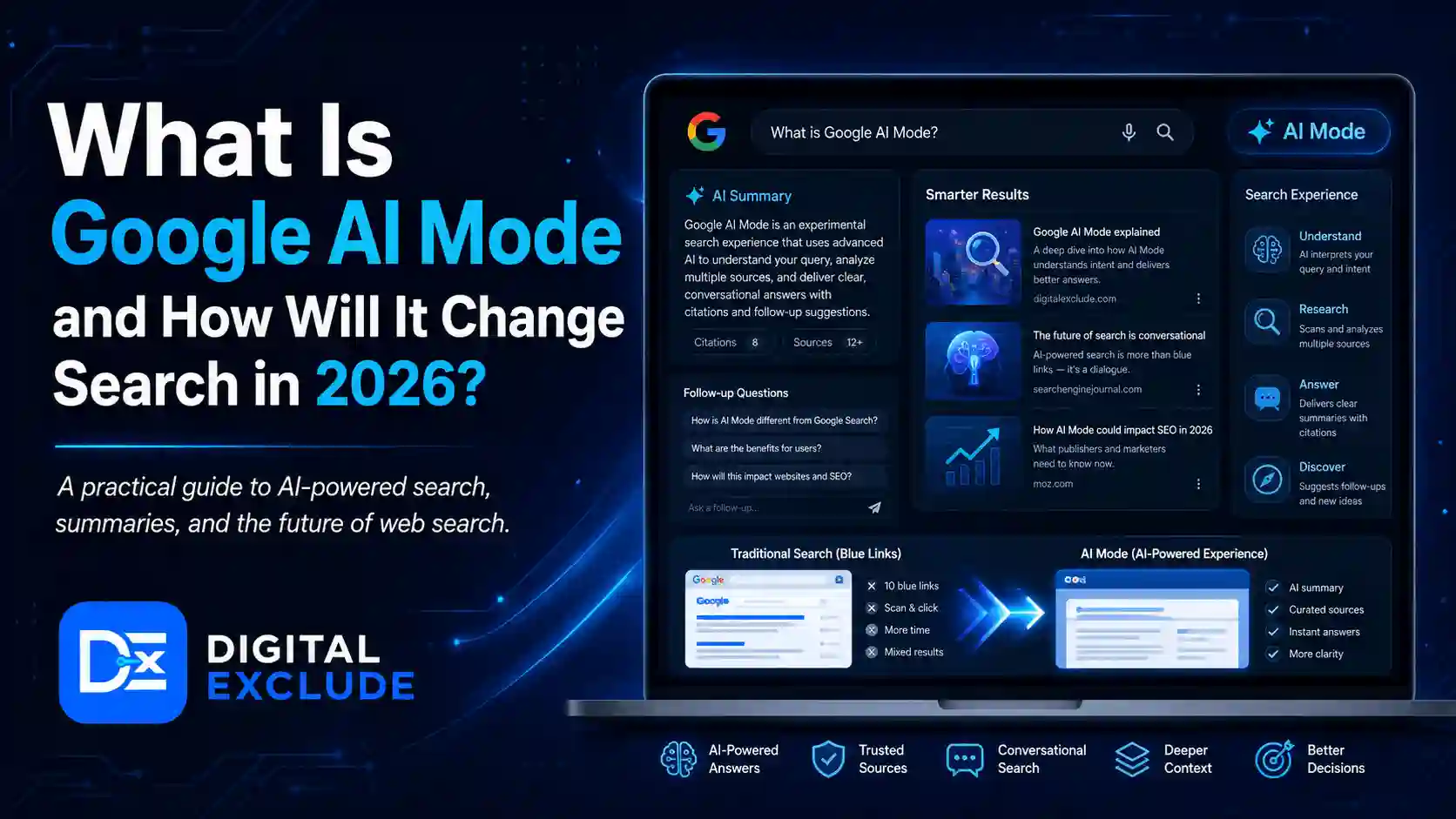
Google AI Mode is a more conversational and AI-powered search experience inside Google Search. Instead of showing only a list of links or a short AI summary, AI Mode lets users ask complex questions, get AI-generated answers, explore follow-up questions, and go deeper into a topic from the same search session.
For bloggers, marketers, and tech readers, Google AI Mode matters because it changes search behaviour. Users may search with longer questions, compare options inside one session, ask follow-ups, and rely more on AI-generated explanations before clicking websites. This does not mean SEO is dead. It means content needs to be clearer, more helpful, better structured, and easier for AI systems and humans to understand.
Introduction
Google Search is changing again, and this time the change is bigger than a new ranking update. People are now seeing AI-generated answers, AI Overviews, and AI-powered search experiences that feel more like a conversation than a traditional search results page.
This is why many bloggers, marketers, and tech readers are asking the same question: What is Google AI Mode, and how will it change Search in 2026?
The confusion is understandable. AI Overviews already appear for many searches. Now AI Mode adds a deeper, more interactive search experience. People may not know whether AI Mode is the same as AI Overviews, whether it will reduce website clicks, or how content creators should prepare.
This guide explains Google AI Mode in simple language, how it differs from AI Overviews, why it matters in 2026, and what bloggers and marketers should do next.
What Is Google AI Mode?
Google AI Mode is an AI-powered search experience that lets users ask complex questions and continue with follow-up questions inside Google Search. It is designed for searches where users need more reasoning, comparison, explanation, or step-by-step help.
In normal Google Search, users often type short queries such as:
best AI tools for studentsIn Google AI Mode, users may ask more detailed questions, such as:
What are the best AI tools for students who need help with research, note taking, presentations, and exam preparation? Compare free and paid options.AI Mode can understand a broader question, break it into smaller parts, search across the web, and present a more complete answer with links for deeper reading.
Simple Explanation
Traditional Search helps users find pages.
AI Overviews give a short AI-generated snapshot in search results.
Google AI Mode creates a more interactive AI search experience where users can ask deeper questions and continue the conversation.
Why Google AI Mode Matters in 2026
Google AI Mode matters in 2026 because it changes how people search, compare, and decide.
Earlier, a user might search, open five tabs, compare information manually, and then choose a result. In AI Mode, the user may ask one detailed question and get a structured answer that already compares options, explains trade offs, and suggests next steps.
This can affect:
- How users discover content
- How bloggers get traffic
- How marketers plan SEO
- How brands appear in AI answers
- How product comparisons are written
- How informational content is structured
- How authority and trust are judged
- How do follow-up searches happen
For publishers, the main shift is not only ranking position. It is whether your content is useful enough to be referenced, summarized, or selected as a supporting source in an AI-driven search journey.
Google AI Mode Explained for Beginners
Think of Google AI Mode as a smarter search workspace.
A user can ask:
I am a beginner. Should I learn cloud computing or cybersecurity first in 2026?Instead of only showing links, AI Mode may organize the answer around:
- Skill difficulty
- Career paths
- Beginner-friendly certifications
- Time needed to learn
- Job relevance
- Recommended first steps
- Links to useful pages
The user can then ask:
What if I am from a non technical background?This follow-up question continues the search journey without starting from zero.
That is the biggest user behaviour shift. Search becomes less like typing separate keywords and more like having a guided research session.
AI Mode vs AI Overviews
Google AI Mode and AI Overviews are related, but they are not the same.
| Feature | AI Overviews | Google AI Mode |
|---|---|---|
| Where it appears | Inside normal Google Search results | As a dedicated AI powered search experience |
| Main purpose | Gives a quick AI generated snapshot | Helps users explore deeper questions |
| User interaction | Limited compared with AI Mode | More conversational with follow up questions |
| Best for | Quick answers and summaries | Complex research, planning, comparison, and exploration |
| Search behaviour | User may still browse normal results | User may stay longer inside AI guided search |
| SEO impact | Can affect click through from search results | Can change how people search and discover sources |
| Content need | Clear answers and reliable information | Deeper explanations, examples, comparisons, and structured content |
Direct Answer
AI Overviews summarize answers inside regular Search. Google AI Mode is a more interactive AI search experience where users can ask complex questions and continue with follow-up questions. AI Overviews affect what users see on a results page. AI Mode affects how users search and explore.
How Google AI Mode Changes Search Behaviour
1. Users Will Ask Longer Questions
Traditional SEO often focused on short keywords.
Examples:
cloud security
best AI tools
SEO checklist
AI Mode encourages longer, more natural questions.
Examples:
What are the best cloud security practices for a small business using Google Workspace and Microsoft 365?Which AI tools are useful for students who need free research, note taking, and presentation help?This means bloggers and marketers should write for full search intent, not only keywords.
2. Follow Up Questions Will Become More Common
Users may not need to start a new search each time. They can continue the same session.
Example flow:
- What is AI automation for small businesses?
- Which tasks should I automate first?
- What tools are safe for customer data?
- Can I do this for free?
- When should I upgrade to a paid plan?
This means content should answer related questions in one article when relevant.
3. Search Will Become More Comparison-Based
AI Mode is useful when users want to compare.
Examples:
- ChatGPT vs Gemini
- Codex vs Claude Code
- Cloud vs cybersecurity
- Free vs paid AI tools
- AI Mode vs AI Overviews
- AWS vs Azure for beginners
If your content includes clear comparison tables, pros and cons, use cases, and decision guidance, it becomes more useful for AI search and human readers.
4. Quick Answers Will Matter More
AI search systems need clear, direct answers. Readers also want quick clarity.
A good article should include:
- A direct answer near the top
- Simple definitions
- Question-based headings
- Short answer blocks
- Tables
- Examples
- Step-by-step advice
- FAQs
This is not about keyword stuffing. It is about making the answer easy to understand.
5. Source Trust Will Become More Important
AI Mode may use information from multiple sources. If the content is thin, outdated, copied, or vague, it is less useful.
Strong content should show:
- Clear authorship
- Updated information
- Practical examples
- Real explanations
- Original thinking
- Expert review where needed
- Transparent external references
- No fake claims
For Digital Exclude, this means tech articles should not only define a topic. They should explain how readers can use the information safely and practically.
Main Practical Guide: How Bloggers and Marketers Should Prepare
1. Write for Search Intent, Not Only Keywords
Do not write only for one keyword.
For example, if your article targets “Google AI Mode,” also answer related questions:
- What is Google AI Mode?
- How does AI Mode work?
- How is AI Mode different from AI Overviews?
- Will AI Mode reduce website traffic?
- How should bloggers optimize for AI search?
- What kind of content can perform better?
This helps the article satisfy the complete query path.
2. Add a Clear Quick Answer Section
AI search and human readers both benefit from a direct answer.
Good format:
Google AI Mode is an AI powered search experience that lets users ask complex questions, get AI generated answers, and continue with follow up questions.Keep it short, accurate, and easy to quote.
3. Use Question-Based Headings
Question-based headings match how people search in AI Mode.
Examples:
- What is Google AI Mode?
- How does Google AI Mode work?
- Is AI Mode different from AI Overviews?
- How will AI Mode affect bloggers?
- How should marketers prepare?
These headings are useful for SEO, AEO, and AI search visibility.
4. Build Helpful Comparison Tables
AI Mode is likely to be used for comparison-heavy searches. Tables help users understand faster.
Examples:
- AI Mode vs AI Overviews
- Traditional Search vs AI Search
- Old SEO content vs. AI-ready content
- Blogger impact vs marketer impact
Tables make information easier to scan and easier for answer systems to interpret.
5. Add Real Examples
Generic content is weak. Add examples that reflect real user behaviour.
Example:
A user searching “best AI coding assistant” may no longer open 10 separate articles first. In AI Mode, they may ask:
Compare Codex, Claude Code, Cursor, and GitHub Copilot for a beginner building a SaaS app.If your article already compares tools by user type, pricing caution, safety, and use case, it is more useful.
6. Improve E E A T Signals
For a serious tech publication, trust matters.
Add:
- Author name
- Updated date
- Clear editorial process
- Practical testing notes where possible
- Author experience
- Sources from official documentation
- Transparent limitations
- No fake hands on claims
- No exaggerated ranking promises
Do not claim you tested a tool if you did not.
7. Create Content That Goes Beyond Summaries
AI Mode may summarize basic definitions. To stand out, your content should include details that are harder to replace.
Add:
- Step-by-step guidance
- Use case-based recommendations
- Mistakes to avoid
- Real decision frameworks
- Screenshots were possible
- Examples from actual workflows
- Safety and privacy cautions
- Beginner-friendly explanations
- Updated tool limitations
This makes content useful even if the user already saw an AI summary.
Traditional Search vs Google AI Mode
| Area | Traditional Google Search | Google AI Mode |
| Query style | Short keywords | Longer natural questions |
| User flow | Search, click, compare manually | Ask, get answer, follow up |
| Content discovery | Based on search results and snippets | Based on AI generated answer and supporting links |
| User intent | Often split across many searches | Often explored in one session |
| Best content format | Optimized pages and snippets | Clear answers, examples, comparisons, and source value |
| SEO focus | Rankings, snippets, CTR | Helpful content, topic coverage, authority, answer quality |
| User expectation | Find pages | Get guidance and next steps |
Real World Examples
Example 1: Blogger Covering AI Tools
Old search behaviour:
best AI tools for studentsUser opens several listicles and compares manually.
AI Mode behaviour:
What are the best free AI tools for students who need help with research, notes, presentations, and exam preparation?What bloggers should do:
- Group tools by use case
- Add free vs paid limits
- Include privacy warnings
- Add a comparison table
- Explain which tool fits which student
Example 2: Marketer Researching SEO Strategy
Old search behaviour:
SEO trends 2026AI Mode behaviour:
How should a small tech blog change its SEO strategy because of AI Mode and AI Overviews?What marketers should do:
- Answer the strategic question directly
- Explain traffic impact carefully
- Add content format tips
- Include measurement advice
- Avoid panic-based claims
Example 3: Tech Reader Comparing Search Features
Old search behaviour:
AI Mode vs AI OverviewAI Mode behaviour:
Explain AI Mode vs AI Overviews in simple language and tell me what it means for bloggers.What publishers should do:
- Add a direct comparison table
- Explain both features clearly
- Include examples
- Add practical SEO advice
- Link to official Google references
Example 4: SaaS Founder Researching Product Content
Old search behaviour:
content strategy for SaaSAI Mode behaviour:
What type of SaaS content is more likely to be useful in AI search results in 2026?What content teams should do:
- Create problem-solving guides
- Include product use cases
- Add comparison pages
- Answer buying questions
- Show real workflows
Common Mistakes to Avoid
Mistake 1: Treating AI Mode as Just Another SERP Feature
AI Mode is not only a search result element. It can change the full search session because users can ask follow-up questions and explore topics more conversationally.
Better approach:
Think beyond rankings. Focus on how users ask, compare, and decide.
Mistake 2: Writing Thin Definition Articles
A short article that only says “AI Mode is AI search” will not be enough.
Better approach:
Add examples, comparisons, safety notes, marketer impact, blogger tips, and FAQs.
Mistake 3: Overusing Keywords
Repeating “Google AI Mode” too many times will not make the article better.
Better approach:
Use the keyword naturally in title, introduction, one H2, and conclusion. Use related terms only where they fit.
Mistake 4: Ignoring AI Overviews
Readers often confuse AI Mode with AI Overviews. If your article does not explain the difference, it leaves the main question unanswered.
Better approach:
Include a simple AI Mode vs AI Overviews comparison.
Mistake 5: Making Traffic Predictions Without Proof
No one can accurately guarantee how much AI Mode will reduce or increase traffic for every website.
Better approach:
Use cautious language. Say that AI Mode may change click behaviour, discovery, and query patterns, but results will vary by topic, quality, brand, and search intent.
Mistake 6: Ignoring Source Quality
AI search experiences still depend on useful information from the web. Low quality content is less likely to build trust.
Better approach:
Use original examples, official references, expert review, and updated information.
Best Practices: Step-by-Step Tips for Bloggers and Marketers
Step 1: Update Existing Articles
Start with your top traffic pages.
Check:
- Is the answer clear in the first 100 words?
- Does the article include examples?
- Are headings question-based?
- Is the content updated for 2026?
- Are there tables or checklists?
- Are external references authoritative?
- Is the content better than a basic AI summary?
Step 2: Add Direct Answer Blocks
For each main question, add a short, direct answer.
Example:
Google AI Mode is a conversational AI search experience that helps users ask complex questions, get AI powered responses, and continue with follow up questions.Step 3: Build Topic Clusters
For Digital Exclude, AI search content can be organized into clusters.
Example cluster:
- What is Google AI Mode?
- AI Mode vs AI Overviews
- How AI search affects bloggers
- How to optimize content for AI search
- Best AI tools for content research
- SEO checklist for AI search visibility
This helps users and search systems understand your topical coverage.
Step 4: Use Original Examples
Do not only repeat official announcements. Add examples for your audience.
For bloggers:
- How listicles may change
- How FAQ pages should improve
- How comparison content should be structured
For marketers:
- How keyword research may shift
- How content briefs should include user questions
- How to measure traffic beyond clicks
For tech readers:
- How AI Mode changes daily search
- When to trust or verify AI answers
- How to use follow-up questions effectively
Step 5: Keep Human Experience in the Content
AI can summarize facts. It is weaker at real experience.
Add:
- What worked
- What failed
- Common confusion
- Practical workflows
- Examples from publishing
- Decision tips
- Cautions
- Limitations
This makes your content more useful than a generic explainer.
Step 6: Track Search Performance Carefully
Marketers should monitor:
- Click-through rate
- Impressions
- Average position
- Query length changes
- Pages are losing clicks but gaining impressions
- Pages appearing for question-based searches
- Referral quality
- Conversion rate
- Branded search growth
Use Google Search Console as a starting point. Do not judge AI search impact only by traffic volume. Look at query behaviour and business outcomes.
How Should Content Change for AI Mode?
| Old Content Habit | Better 2026 Approach |
| Short keyword focused posts | Complete problem solving guides |
| Generic definitions | Clear definitions plus examples |
| No source links | Add official and authoritative references |
| Thin listicles | Use comparison tables and decision tips |
| No author context | Add author, updated date, and editorial review |
| Weak intros | Add direct answer near the top |
| No FAQs | Add concise answer focused FAQs |
| Keyword stuffing | Natural language and topic depth |
| Only traffic focus | Track visibility, trust, and conversions |
Final Recommendation
Google AI Mode is not the end of SEO. It is a signal that search is becoming more conversational, more answer-focused, and more task-oriented.
For bloggers, the priority should be writing content that solves real questions better than a basic AI summary. For marketers, the priority should be understanding how users ask longer questions, compare choices, and move through follow-up searches. For tech publishers like Digital Exclude, the opportunity is to create practical explainers with definitions, examples, comparisons, safety notes, and clear next steps.
The best content strategy for AI Mode is simple:
- Answer the question directly.
- Explain the concept clearly.
- Add real examples.
- Include comparison tables.
- Use authoritative references.
- Add practical recommendations.
- Keep content updated.
- Avoid fake authority and exaggerated claims.
FAQs
-
What is Google AI Mode?
Google AI Mode is an AI-powered search experience in Google Search that lets users ask complex questions, receive AI-generated responses, and continue with follow-up questions.
-
Is Google AI Mode the same as AI Overviews?
No. AI Overviews are AI-generated snapshots inside regular search results. Google AI Mode is a more interactive AI search experience designed for deeper questions and follow-up exploration.
-
How will Google AI Mode affect bloggers?
Google AI Mode may change how users discover and click content. Bloggers should create clearer, more practical, better-structured articles with direct answers, examples, tables, FAQs, and authoritative references.
-
How should marketers prepare for AI Mode?
Marketers should focus on search intent, question-based content, comparison tables, topical authority, updated information, E E A T signals, and tracking changes in impressions, clicks, and query patterns.
-
Will Google AI Mode kill SEO?
No. SEO will not disappear, but it will change. Content that is helpful, trustworthy, well-structured, and solves real user problems will matter more as search becomes more AI-assisted.
Conclusion
Google AI Mode is one of the biggest changes in how people may use Search in 2026. It moves search closer to a conversational research experience where users ask complex questions, receive AI-generated answers, and continue with follow-up questions.
For bloggers and marketers, this means content must become more useful, structured, and trustworthy. Ranking for a keyword is no longer enough. Your content should answer the real question, explain the topic clearly, include examples, compare options, and help readers make better decisions.
AI Mode does not remove the need for good content. It raises the standard for what good content needs to do.