Quick Answer
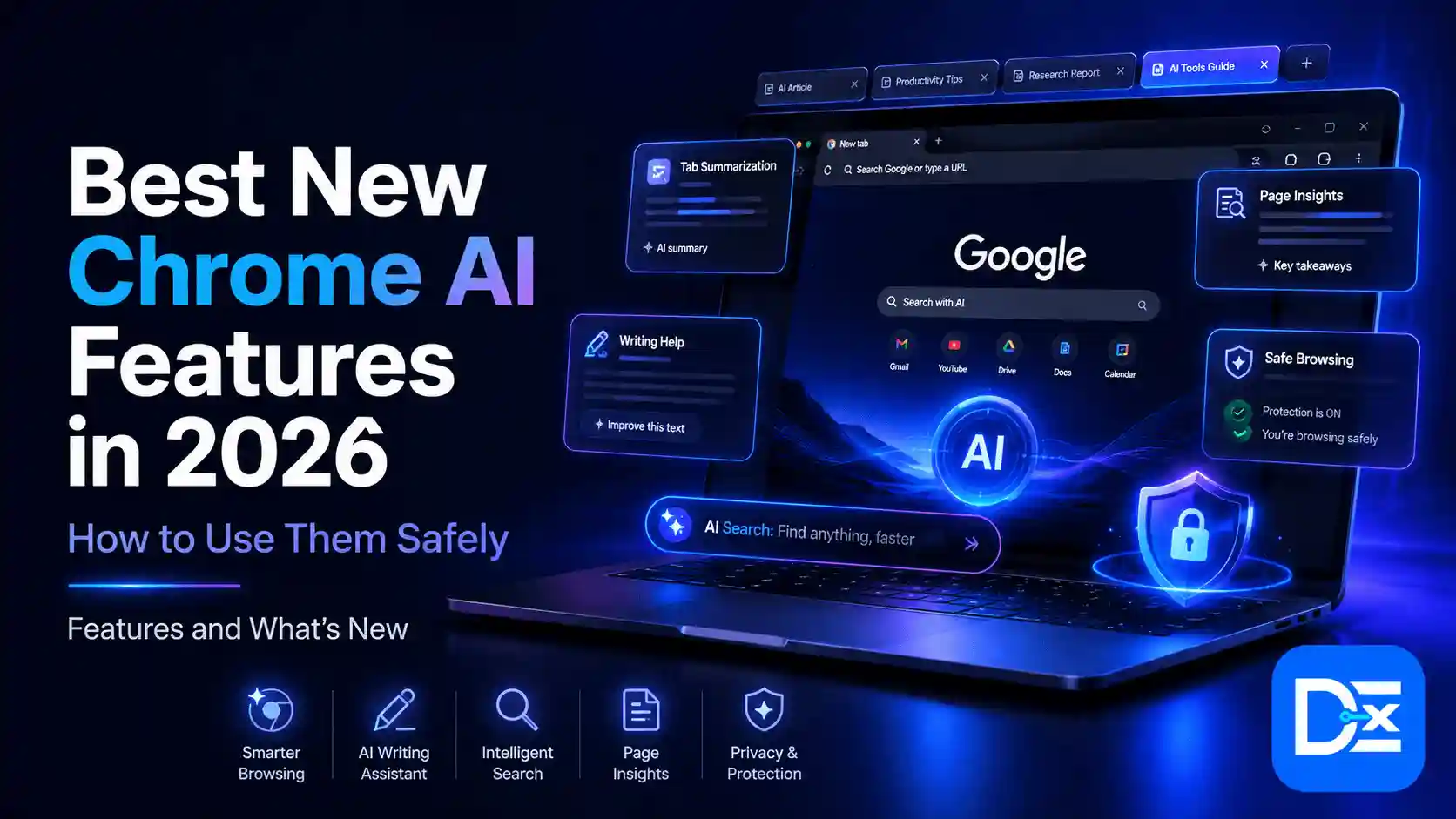
The best Chrome AI features in 2026 include Gemini in Chrome, AI Mode inside Chrome, tab-based help, page summaries, multi-tab comparison, reusable AI Skills, mobile AI assistance, auto browse for supported users, image help with Nano Banana, and AI-powered password updates. These features can help Chrome users, remote workers, and students save time while reading, researching, comparing, and managing web tasks.
The safe way to use Chrome AI is to start with low-risk tasks such as summarizing public articles, comparing open tabs, creating study aids, or drafting non-sensitive notes. Be careful with private emails, work documents, financial pages, medical records, passwords, and browser tasks that let AI act on your behalf.
Introduction
Chrome is no longer just a browser for opening tabs and searching the web. In 2026, Google is adding more AI directly into Chrome so users can ask questions, summarize pages, compare information, create study aids, get help across tabs, and even complete some web tasks with Gemini.
This is useful for people who spend a lot of time online. A student can summarize a long article. A remote worker can compare multiple research tabs. A shopper can ask for product differences. A professional can ask Gemini to explain a complicated page in simpler language.
But there is also a real concern. Chrome AI features 2026 are powerful because they can use page context, open tabs, Google services, and in some cases web task automation. That means users need to understand what they are sharing, what Gemini can access, what should stay private, and when human review is still required.
This guide explains the best new Chrome AI features in 2026 and how to use them safely without exposing personal, work, or browsing data unnecessarily.
What Chrome AI Features 2026 Means
Chrome AI features 2026 means the set of AI tools built into Google Chrome to help users understand, search, summarize, compare, create, and complete browsing tasks more efficiently.
The main feature is Gemini in Chrome, which Google describes as an AI browsing assistant. Google’s official Chrome AI innovations page says Gemini in Chrome can help users ask questions, compare information, and get faster help with open tabs in the browser.
Chrome AI features can help with:
- Summarizing web pages
- Explaining complex topics
- Asking questions about the current tab
- Comparing information across tabs
- Creating study aids
- Summarizing YouTube videos
- Drafting messages
- Finding product differences
- Helping with shopping research
- Using AI Mode alongside browsing
- Reusing common prompts with Skills
- Completing web tasks with auto browse for eligible users
- Updating compromised passwords on supported sites
These are part of a wider shift toward AI-powered browsing. If you want to compare Chrome with other browser AI tools, Digital Exclude’s guide on AI Agent vs Chatbot is useful because it explains the difference between a tool that answers questions and a tool that can take action.
Why This Matters in 2026
Chrome AI matters in 2026 because many users now research, study, work, shop, and manage tasks directly inside the browser. Instead of copying page text into a separate AI app, users can get help closer to the page they are reading.
For remote workers, this can reduce tab switching. For students, it can make dense content easier to understand. For everyday Chrome users, it can help with shopping, planning, writing, and security tasks.
But the same convenience can create risk. Google’s Use Gemini in Chrome help page says Gemini in Chrome uses content from your current browser tab by default and can also share up to 10 open tabs on a computer. That is useful for tab summarisation and comparison, but it also means users should think before sharing sensitive pages.
In simple terms:
- AI can save time.
- AI can help you understand web content faster.
- AI can also see more context when you allow it.
- Safer use depends on permissions, settings, and common sense.
If you use Chrome AI for work or study, treat it like any other productivity tool. Use it where it helps, but do not give it unnecessary access to private data.
Main Practical Guide: Best Chrome AI Features in 2026
1. Gemini in Chrome
Gemini in Chrome is Google’s AI browsing assistant built into Chrome. It can help you ask questions about what you are reading, summarize information, clarify concepts, compare pages, and get help without leaving the browser.
Google’s Gemini in Chrome help page says users can ask Gemini in Chrome to summarize key takeaways from an article, explain complex topics differently, help test knowledge, compare or consolidate information across pages, make recommendations, complete multi-step actions, draft Gmail messages, and look up past photos and albums.
Best for
- Students reading long articles
- Remote workers reviewing pages
- Professionals comparing information
- Chrome users who want help inside the browser
- Beginners who want easier explanations
Practical example
A student opens an article about cloud security and asks:
Summarize this page in 5 beginner-friendly points and create 3 revision questions.
A remote worker opens two vendor pages and asks:
Compare these two tools based on pricing, features, privacy, and best use case.
Safety tip
Do not share sensitive tabs unless needed. If you are reading a banking page, private medical record, HR document, or confidential work file, avoid asking Gemini to process that page unless your organization allows it.
2. Multi-Tab Help and Tab Summarisation
One of the most useful Chrome AI features is help across open tabs. Gemini in Chrome can use your current tab by default and can let you share additional open tabs. Google’s support page says users can share up to 10 open tabs on a computer.
This is useful when you are comparing:
- Products
- Articles
- Research sources
- Travel options
- Job listings
- Software tools
- Study material
- Pricing pages
Best for
- Students researching multiple sources
- Remote workers comparing tools
- Shoppers checking product pages
- Marketers reviewing competitors
- Professionals creating summaries
Practical prompt
Compare these open tabs and create a table with price, features, limitations, and best user type.
Safety tip
Only share the tabs needed for the task. If you have private email, company dashboard, bank page, or personal account pages open, remove them from Gemini’s shared tab list.
3. AI Mode in Chrome
AI Mode in Chrome lets users ask more complex questions while browsing. Google’s Chrome AI page says AI Mode can stay open alongside tabs and can use context such as tabs, files, and images for more specific questions.
This is useful when a normal search is not enough.
Example:
Instead of searching:
best laptop for students
You can ask:
Compare these laptop options for a college student who needs good battery life, light weight, and basic video editing support.
Best for
- Research-heavy searches
- Product comparisons
- Learning new topics
- Planning projects
- Understanding complex pages
Safety tip
AI Mode can make research faster, but you should still verify important information from original sources. Prices, product specs, health claims, financial details, and legal information should never be trusted from an AI answer alone.
For a broader view of AI-powered browsing, use Digital Exclude’s best productivity apps guide to decide which browser, note-taking, task, and password tools should be part of your daily workflow.
4. Skills in Chrome
Skills in Chrome let users save useful Gemini prompts and reuse them across pages. Google’s official blog explains that Skills in Chrome help users turn repeated AI prompts into one-click tools.
This is useful if you often ask the same type of question.
Examples:
- Summarize this article in 5 bullets.
- Compare these products by price and warranty.
- Create study questions from this page.
- Check this page for key action items.
- Summarize customer reviews.
- Explain this page to a beginner.
Best for
- Students
- Researchers
- Remote workers
- Content marketers
- Product comparison tasks
- Users who repeat the same prompts daily
Practical example
A student can create a Skill:
Turn this page into a short revision note with key terms and 5 quiz questions.
A remote worker can create a Skill:
Extract action items, deadlines, and risks from this page.
Safety tip
Do not create Skills that ask Chrome AI to process private pages by default. A reusable prompt can save time, but it can also make users share more context than intended if used carelessly.
5. Auto Browse for Supported Users
Auto browse lets Gemini in Chrome complete certain multi-step web tasks for eligible users. Google’s auto browse help page says users can ask Gemini in Chrome to compare products, search for deals, add items to a cart, help find and book travel accommodations, make reservations, schedule appointments, draft communications, organize calendar schedules, research job markets, and handle other administrative web tasks.
Google also notes that auto browse currently requires eligibility conditions, including being 18 or over, being in the US, using a personal Google Account, having Google AI Ultra or Google AI Pro, using English, and having Safe Browsing set to Enhanced or Standard protection.
Best for
- Repetitive web tasks
- Shopping comparisons
- Travel research
- Scheduling support
- Admin work
- Remote workers with repeated browser tasks
Practical example
A user can ask:
Find three hotels near this conference venue with free Wi-Fi, breakfast, and flexible cancellation. Do not book anything without asking me.
Safety tip
Always review the plan before starting the task. Google’s help page says users should check that Gemini understood the prompt, page context, and personal information correctly before letting it continue. For sensitive steps, review and confirm manually.
Do not let browser AI tools complete tasks involving payments, banking, health portals, HR pages, business admin panels, or legal forms without close review.
6. Nano Banana in Chrome
Google’s Chrome AI page says Gemini in Chrome includes Nano Banana, an image model that can help users visualize a webpage as an infographic or transform an image found on the web.
This is useful for visual brainstorming, study aids, home projects, and creative exploration.
Best for
- Students creating visual notes
- Creators preparing ideas
- Home project planning
- Visual comparison tasks
- People who learn better with images
Practical example
A student reading a page about the water cycle may ask:
Turn this explanation into a simple infographic for revision.
Safety tip
Check copyright, image ownership, and usage rights before using AI-edited images for public, commercial, or school submissions. AI image tools are helpful for ideas, but they do not automatically give you rights to reuse every source image.
7. Mobile Gemini Support in Chrome
Chrome AI is not only for desktop users. Google says Gemini on mobile can answer questions about what users are reading, and Gemini in Chrome is available depending on device, region, language, and age requirements.
Best for
- Students reading on phones
- Mobile researchers
- Android users
- iPhone Chrome users where supported
- People who read articles during travel
Practical example
A student opens a long article on mobile and asks:
Explain this article in simple language and list the terms I should remember.
Safety tip
Mobile screens make it easier to miss what is being shared. Before asking Gemini to process a page, check that you are not on a private account page, payment page, or confidential document.
If you are interested in mobile AI features beyond Chrome, link this topic later with a Digital Exclude mobile article about Android AI features when that post is live.
8. AI-Powered Password Updates
Google’s Chrome AI page says Chrome can offer to automatically update a compromised password on supported sites and save the new password to Google Password Manager.
This feature is useful because many users ignore password warnings. AI-powered password updates can reduce friction when Chrome detects that a password may be compromised.
Best for
- General Chrome users
- Students with reused passwords
- Remote workers with many accounts
- Users who rely on Google Password Manager
Practical example
Chrome detects that a saved password was compromised. Instead of manually finding the password settings page, the browser may help update the password on supported sites.
Safety tip
Use this with strong account recovery. For better account protection, read Digital Exclude’s guide on what passkeys are because passkeys can reduce password-related risk on supported accounts.
Chrome AI Features Comparison Table
| Chrome AI Feature | Best Use | Good For | Main Safety Risk |
| Gemini in Chrome | Ask questions about pages | Students, workers, general users | Sharing sensitive tab content |
| Multi-tab help | Compare open tabs | Research and shopping | Accidentally sharing private tabs |
| AI Mode in Chrome | Complex search and research | Researchers, students, professionals | Trusting answers without source checks |
| Skills in Chrome | Reuse common prompts | Repeat workflows | Applying prompts to private pages |
| Auto browse | Complete web tasks | Eligible Pro and Ultra users | Sharing personal info or taking wrong action |
| Nano Banana | Visualize or edit images | Students, creators | Copyright and image-use concerns |
| Mobile Gemini | Ask about mobile pages | Phone users | Smaller screen privacy mistakes |
| AI password update | Change compromised passwords | General users | Depending only on browser alerts |
Real World Examples
Example 1: Student Researching a Topic
A student researching “AI in education” opens four articles and asks Gemini in Chrome:
Compare these pages and list the common points, different opinions, and terms I should understand.
Best use:
- Summaries
- Study notes
- Quiz questions
- Key term explanation
Be careful:
Do not copy the AI answer directly into an assignment. Use it as a study aid and write your final work in your own words.
Example 2: Remote Worker Reviewing Vendor Pages
A remote worker compares project management tools.
Prompt:
Compare these tools based on pricing, integrations, privacy notes, and best use case for a small remote team.
Best use:
- Initial comparison
- Decision table
- Shortlisting vendors
- Finding missing questions
Be careful:
Verify pricing and security details from official product pages before buying.
Example 3: Job Seeker Comparing Listings
A job seeker opens several job descriptions and asks:
Compare these roles by skills required, salary clues, remote work options, and interview preparation topics.
Best use:
- Job comparison
- Resume targeting
- Skill gap analysis
- Interview prep
Be careful:
Do not upload private documents or personal IDs unless you know how the tool handles your data.
Example 4: Shopper Comparing Products
A user opens three laptop pages and asks:
Compare these laptops for battery life, RAM, storage, display, warranty, and student use.
Best use:
- Product comparison
- Feature explanation
- Buying checklist
Be careful:
AI may miss updated prices, stock status, or warranty details. Always check the official page before purchase.
Example 5: SMB Team Using Chrome AI for Research
A small business team uses Chrome AI to compare SaaS tools, summarize policies, and draft meeting notes.
Best use:
- Market research
- Internal summaries
- Vendor comparison
- Draft planning notes
Be careful:
Do not process confidential contracts, customer records, financial files, or HR documents without company approval.
Common Mistakes to Avoid
Mistake 1: Sharing Every Open Tab
Gemini in Chrome can use the current tab and may allow sharing multiple tabs. This is useful, but risky if private pages are open.
Better approach:
Share only the tabs needed for the question.
Mistake 2: Treating AI Summaries as Final Truth
AI summaries can miss details, simplify too much, or misunderstand context.
Better approach:
Use Chrome AI for first-pass understanding, then verify important facts from the original page.
Mistake 3: Using Chrome AI on Sensitive Work Documents
Remote workers may be tempted to summarize internal documents quickly.
Better approach:
Follow your company’s AI and data policy. If the document contains private client, legal, financial, employee, or customer data, ask before using browser AI tools.
Mistake 4: Ignoring Gemini Activity and Privacy Settings
Google’s Gemini Apps Privacy Hub explains how Gemini Apps process data and includes privacy details for Gemini in Chrome.
Better approach:
Review settings for Gemini activity, tab sharing, location, microphone, and connected apps before using Chrome AI heavily.
Mistake 5: Letting Auto Browse Act Without Review
Auto browse can help with web tasks, but any action on websites can create mistakes.
Better approach:
Review the plan, confirm sensitive steps manually, and take over tasks when personal or financial details are involved.
Mistake 6: Using AI on Risky Websites Without Caution
Browser AI tools read page content. Untrusted pages may contain misleading information or hidden instructions.
Better approach:
Use trusted sources for serious topics and be careful with unknown websites, fake shopping pages, and suspicious downloads.
Mistake 7: Forgetting Chrome Extensions
AI features are not the only browser risk. Extensions can also access browsing data depending on permissions.
Better approach:
Review installed extensions regularly, remove unused ones, and avoid unknown AI extensions with broad site access.
Best Practices: Step-by-Step Tips
Step 1: Update Chrome
Chrome AI features usually require the latest version of Chrome.
Steps:
- Open Chrome.
- Click the three-dot menu.
- Go to Help.
- Click About Google Chrome.
- Update if available.
- Restart Chrome.
Step 2: Check Feature Availability
Gemini in Chrome is not available to every user at the same time. Google’s help page says the feature is gradually rolling out and depends on factors such as region, age, device, language, account type, and admin settings.
Check:
- Are you signed in to Chrome?
- Are you using a supported region?
- Are you 18 or older?
- Are you using the latest version?
- Are you on a supported device?
- Is your language supported?
- Is it enabled by your school or work admin?
Step 3: Start With Public Content
Try Chrome AI on safe pages first:
- Public articles
- Product pages
- Educational pages
- YouTube videos
- Public documentation
- Recipe pages
- Travel pages
Avoid starting with:
- Bank accounts
- Private email
- HR portals
- Medical portals
- Customer data
- Work dashboards
- Legal documents
Step 4: Use Better Prompts
Good prompts make Chrome AI more useful.
For summaries:
Summarize this page in 5 bullet points and list the claims I should verify.
For students:
Explain this page like I am a beginner and create 5 quiz questions.
For remote workers:
Extract action items, risks, and deadlines from this page.
For tab comparison:
Compare these shared tabs in a table and show which option is best for a student, remote worker, and small team.
For safety:
Before answering, tell me what information from this page might be sensitive.
Step 5: Manage Shared Tabs
When using Gemini in Chrome:
- Check which tabs are shared.
- Remove tabs that are not needed.
- Do not share private account pages.
- Turn off default tab sharing if you do not want it.
- Start a new chat for unrelated tasks.
Step 6: Review Permissions
In Chrome settings, review Gemini permissions such as:
- Precise location
- Microphone
- Share current tab by default
- Let Gemini browse for you
Give only the permissions you actually need.
Step 7: Verify Before Acting
Before using AI output:
- Check dates.
- Check prices.
- Check source credibility.
- Check product details.
- Check policies.
- Check whether the page is current.
- Check whether private data was included.
Chrome AI Safety Checklist
| Safety Check | Why It Matters |
| Is the page public? | Safer for AI summaries |
| Is the tab sensitive? | Avoid sharing private data |
| Are multiple tabs shared? | Prevent accidental exposure |
| Is auto browse involved? | Actions need review |
| Does the task involve money? | Confirm manually |
| Does the task involve health or legal info? | Use expert sources |
| Is the information current? | Verify from original page |
| Are extensions trusted? | Extensions can create risk |
| Are privacy settings reviewed? | Keeps user control clear |
| Is this a work account? | Company policy may apply |
Pros and Cons of Chrome AI Features
| Pros | Cons |
| Saves time on reading and research | May share page context if enabled |
| Helps summarize long pages | Summaries can miss details |
| Useful for students and remote workers | Feature availability varies |
| Can compare open tabs | Users may share private tabs accidentally |
| Helps create study aids | Should not replace learning |
| Can assist with web tasks | Auto browse needs close review |
| Improves password handling on supported sites | Not a full security solution |
| Works inside Chrome | Some features may need paid plans or eligibility |
Final Recommendation
The best way to use Chrome AI features in 2026 is to treat them as productivity support, not as a replacement for judgment.
Use Gemini in Chrome for summaries, explanations, tab comparison, study notes, and early research. Use AI Mode for complex questions that need more context. Use Skills for repeated safe prompts. Use auto browse only when you understand the task, review the plan, and can stop or take over if needed.
For students, Chrome AI can reduce reading time and improve study notes. For remote workers, it can reduce tab switching and speed up research. For general Chrome users, it can make everyday browsing easier.
The main rule is simple: do not share more data than the task needs. Keep private tabs private, check permissions, verify important answers, and review actions before letting AI complete web tasks.
FAQs
-
What are the best Chrome AI features in 2026?
The best Chrome AI features in 2026 include Gemini in Chrome, AI Mode, tab-based help, multi-tab comparison, Skills, mobile AI help, auto browse for eligible users, Nano Banana image help, and AI-powered password updates.
-
What is Gemini in Chrome?
Gemini in Chrome is Google’s AI browsing assistant inside Chrome. It can help users summarize pages, ask questions, compare open tabs, explain topics, draft messages, and complete supported web tasks.
-
Is Gemini in Chrome available to everyone?
No. Availability depends on region, device, age, language, account type, Chrome version, and rollout status. Some features, such as auto browse, may require Google AI Pro or Ultra and other eligibility conditions.
-
Is Chrome AI safe to use?
Chrome AI can be safe when used carefully. Avoid sharing private pages, review tab sharing, check permissions, verify important answers, and do not let AI complete sensitive actions without human review.
-
Can Chrome AI summarize tabs?
Yes, Gemini in Chrome can help summarize page content and can use selected open tabs for comparison or tab summarization on supported devices and accounts. Users should only share tabs needed for the task.
Conclusion
Chrome AI features 2026 can make browsing faster and more useful for students, remote workers, and everyday Chrome users. Gemini in Chrome can summarize pages, explain topics, compare tabs, create study aids, help with AI Mode research, and assist with selected web tasks.
The productivity benefit is real, but safe use matters. Review what tabs are shared, avoid sensitive pages, check Gemini settings, verify important information, and use human judgment before acting on AI suggestions.
Chrome AI works best when it helps you read, compare, and organize information faster while you stay in control of privacy, permissions, and final decisions.